
Adding episodes
How episodes get into ShowBits and what happens to them: upload or import, embargo, processing and what the analysis delivers. Everyone in a workspace can add episodes.
Upload a file
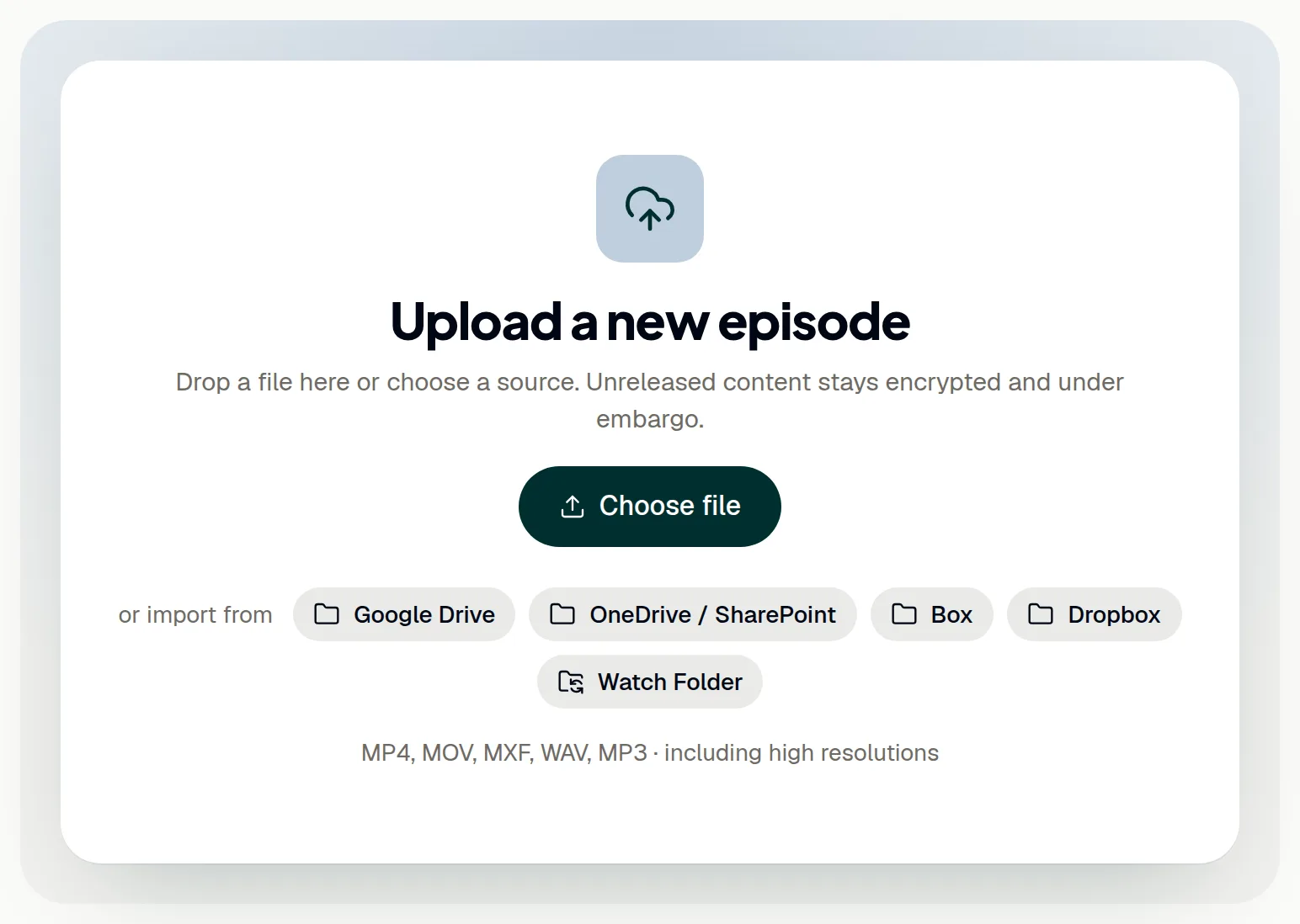
ShowBits takes video and audio files in MP4, MOV, MXF, WAV and MP3, including high resolutions, up to 500 GB.
- Open Overview.
- Drag the file onto Upload a new episode, or click Choose file and pick it. Upload episode at the top of every page does the same.
- Follow the progress below the upload area. You can move around in ShowBits meanwhile; keep the page open until the upload is done.
Closing or reloading the page interrupts the upload. Click Continue and pick the same file: the upload goes on where it stopped. Discard gives up an interrupted upload and Cancel stops a running one; both delete the episode.
Import from cloud storage
From Google Drive, OneDrive / SharePoint, Box and Dropbox, ShowBits imports without copying the file: it reads it straight from the storage. An admin connects each storage once: see Google Drive, OneDrive and SharePoint, Box and Dropbox.
- On Overview, click the storage below Choose file, or click Import files on its card under Integrations.
- Open the folder with the episode, or find the file with Search.
- Click Import next to the file. Files already imported show Imported.
Admins can choose a folder with Make import folder; everyone in the team then starts there. Admins can also have a folder watched, so that new files become episodes by themselves: see Watch Folder. On Enterprise and OnPremise, episodes can also come from the storage of your MAM or DAM: see MAM and DAM.
Set, change or lift the embargo
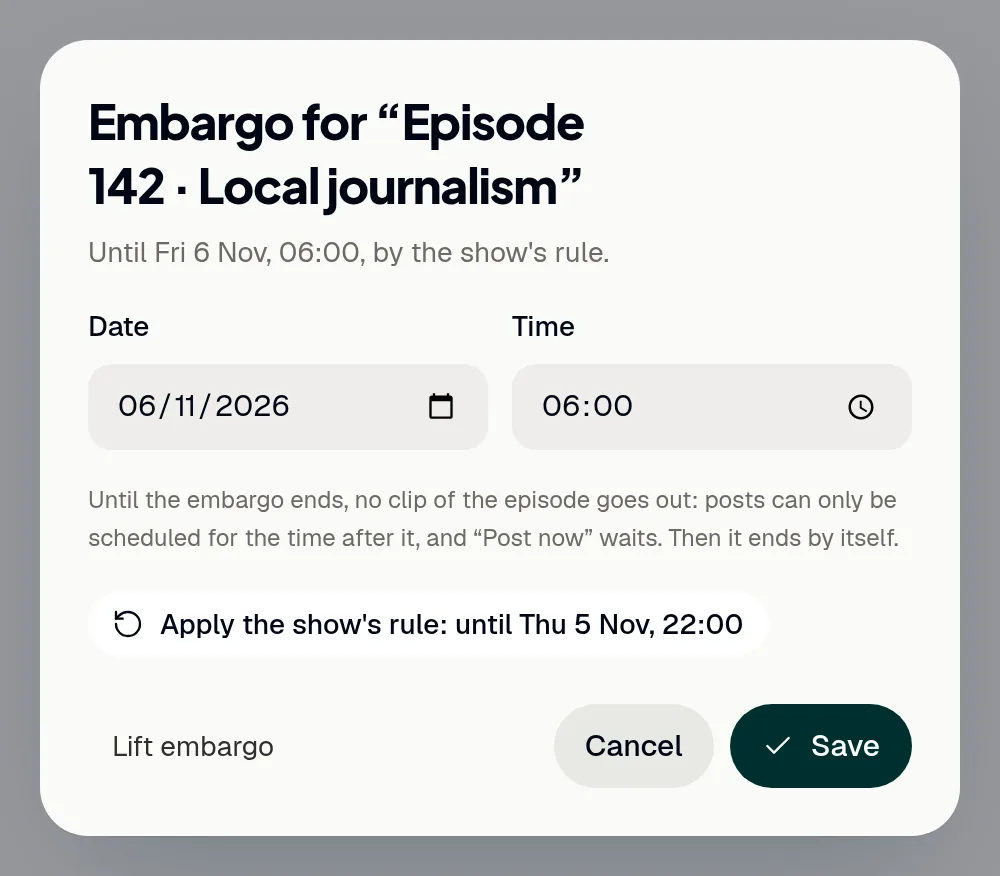
An embargo keeps an episode's clips from going out before a set time, for example until the broadcast. New episodes get an embargo from their show's rule or from the default embargo, if one is set. Until it ends, posts can only be scheduled for the time after it, and Post now waits; then it ends by itself.
- Open the episode, or find it on the overview under Processing while it is uploaded or analysed.
- Click the embargo field (Embargo until …), or Set embargo if there is none.
- Choose Date and Time and click Save.
- To end the embargo now, click Lift embargo, then Lift.
Only admins and duty editors change the embargo; everyone else sees it. If posts are scheduled before the new end, ShowBits lists them and, when you confirm, moves them to the end of the embargo. Apply the show's rule goes back to the rule. Times are German time (Europe/Berlin), and every change is in the audit log.
Follow the processing
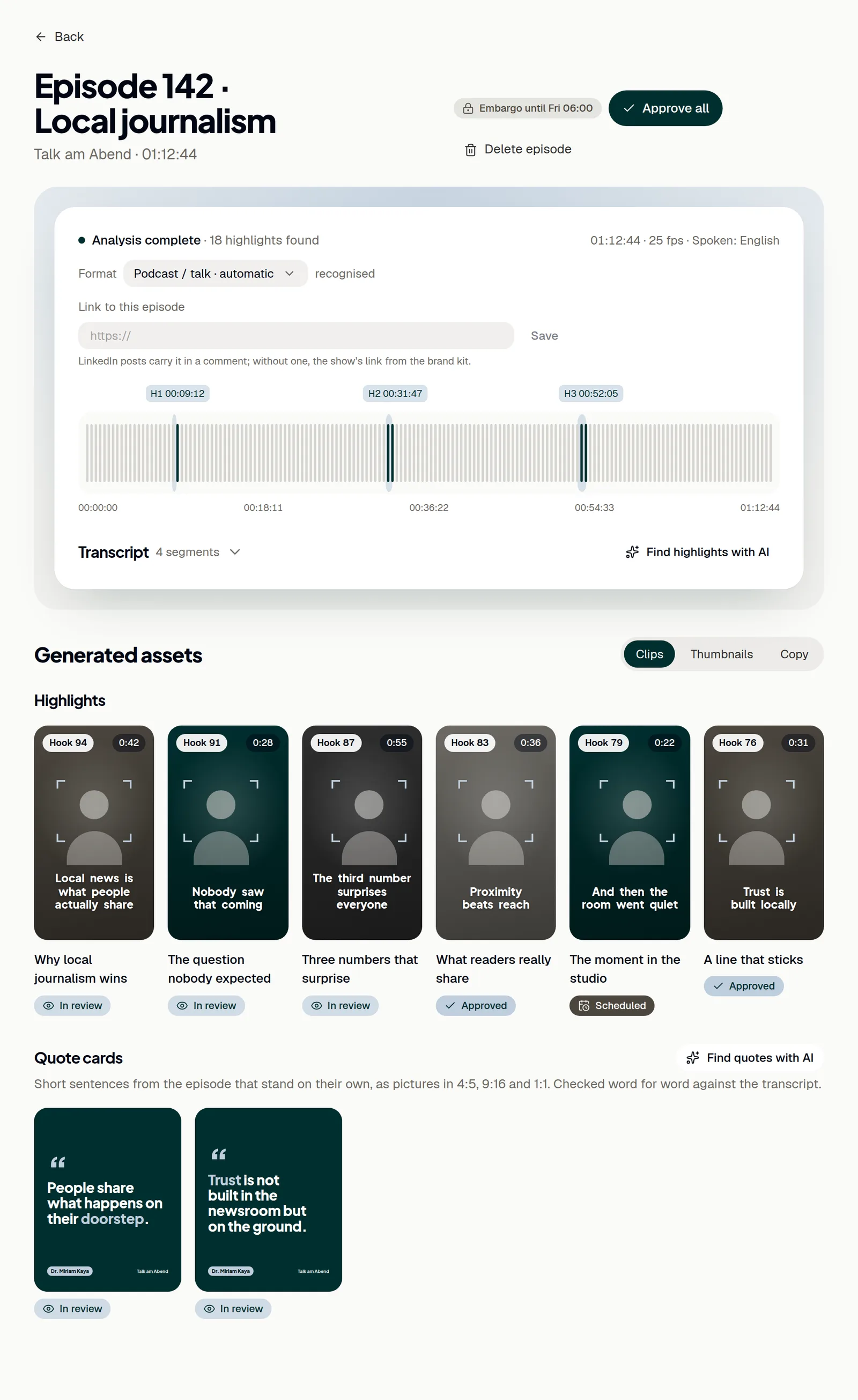
After the upload, ShowBits processes the episode in four steps, shown on the overview under Processing: Upload, Analysis, Assets and Done. The analysis writes the transcript, recognises the speakers and picks the highlights; then ShowBits cuts the clips and makes thumbnails and quote cards. When the analysis is done, ShowBits shows Analysis complete with the number of highlights found.
If the AI analysis could not run, the episode is ready with its transcript only and says why; Find highlights with AI on the episode starts it again. Each episode's length counts towards the input minutes of your allowance. When they are used up for the month, the episode says Quota used up: Resume processing starts it once minutes are free again, in the new month or with a credit pack.
What the analysis delivers
Open the episode under Episodes. At the top, ShowBits shows the recognised Format: Podcast / talk, Reality TV / show or Livestream. In a podcast or talk, the transcript names Host and Guest; in other formats, it numbers the people. For Reality TV and Livestream, ShowBits also finds Memes: short lines and reactions that work out of context.
- If the format is wrong, choose the right one under Format, then click Find highlights with AI.
- Click Transcript to read what was said, with the speakers.
- Under Generated assets → Clips, you find the highlights, memes and quote cards.
- Under Thumbnails, download each thumbnail as 16:9 for YouTube or as the 9:16 cover for Reels, TikTok and Shorts.
- On the Copy tab, click Copy next to a channel's text to use it elsewhere.
Quote cards are short sentences from the episode that stand on their own, as pictures in 4:5, 9:16 and 1:1. ShowBits checks them word for word against the transcript. The waveform marks the three strongest highlights.
Find more with AI
Three buttons on the episode ask the AI again.
- Click Find highlights with AI next to Transcript; for Reality TV and Livestream it reads Find highlights and memes with AI. ShowBits analyses the episode again and adds new clips where they do not overlap existing ones. This usually takes two to three minutes.
- Click Find quotes with AI next to Quote cards for more quote cards; the existing ones stay.
- On the Thumbnails tab, click Headlines with AI for new thumbnail headlines.
New clips and quote cards wait for approval, like the first ones.
Find and delete episodes
- Open Episodes and choose All, Processing, For approval or Published.
- Or search at the top for episodes, clips or shows; the results appear in the episode list.
- To delete an episode, open it and click Delete episode.
- Check what the dialog lists and click Delete episode again.
Deleting is final; there is no recycle bin. The transcript, highlights and clips go with it, including their texts, approvals and scheduled posts. An imported file stays in its storage; an uploaded file is deleted. The audit log records who deleted the episode.
Questions
Which files can I upload?
Video and audio files in MP4, MOV, MXF, WAV and MP3, including high resolutions, up to 500 GB per file. In cloud storage, ShowBits shows folders and video and audio files, MXF too.
My upload was interrupted. Do I have to start again?
No. In the same browser, click Continue and pick the same file: the upload goes on where it stopped. Finish it within two days; after that, ShowBits removes the unfinished episode and you upload the file again.
Can I move or delete the file in my cloud storage after the import?
Leave it where it is. ShowBits reads the file from the storage, also when it cuts clips again later. If the file can't be reached, the processing stops: check the connection and the sharing, then import the episode again.
Why does my episode say **Quota used up**?
Each episode's length counts towards your organisation's input minutes for the month. When they are used up, ShowBits takes no new episodes and stops an episode that no longer fits. Resume processing on the episode starts it once minutes are free again, in the new month or with a credit pack. The bottom of the navigation shows what is left.
How do I set an embargo for all new episodes?
Admins set a rule per show under Settings → Guidelines → Embargo per show: until a weekday and time, a number of hours after the upload, or no embargo. Shows without a rule of their own get the Default embargo while Embargo for new uploads is on under Settings → Security; owners and organisation admins set both. A change applies to new episodes. More: Team and settings.