
Sign-in and account
How you sign in to ShowBits, protect your account and join a team. Your sign-in applies to all your workspaces.
Sign in
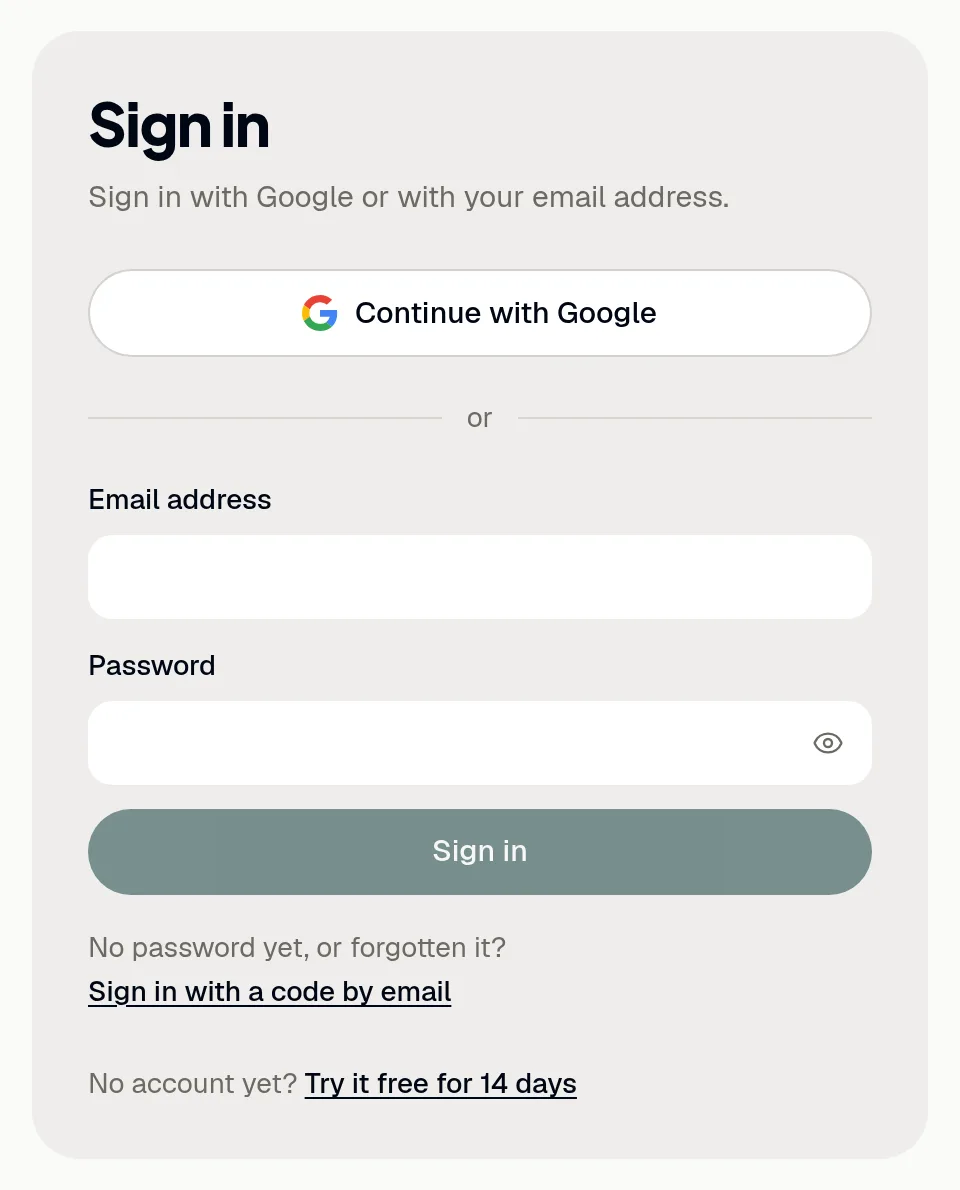
You sign in at app.showbits.ai: with Google, with your email address and password, or with a code by email.
- Open
app.showbits.ai/login. - Click Continue with Google, or enter your Email address and Password and click Sign in.
- No password yet, or forgotten it? Click Sign in with a code by email.
- Enter your email address and click Continue with email.
- Enter the Code from the email and click Sign in.
The code is valid for 10 minutes. No email? Check your spam folder; after a short wait, Send a new code sends another one. With two-factor authentication, ShowBits then asks for the Code from the app.
Set or change your password
- Click Your account at the bottom of the navigation.
- Under Password, click Set password or Change password.
- Under New password, enter a password of at least 10 characters. A phrase of several words is easy to remember.
- Click Save password.
- If you signed in more than a day ago, ShowBits sends you a code by email: enter it and click Save password again.
Saving signs you out on your other devices, and ShowBits confirms the new password by email. Forgotten your password? Sign in with a code by email, then set a new one here.
Turn on two-factor authentication
Two-factor authentication is optional. Once it is on, every sign-in also asks for a code from an authenticator app on your phone, such as 1Password, Google Authenticator or Microsoft Authenticator, also when you sign in with Google or a code by email.
- Open Your account and click Turn on under Two-factor authentication.
- Scan the QR code with your authenticator app, or enter the key shown below it.
- Enter the 6-digit code the app shows for ShowBits and click Turn on.
- Save the ten recovery codes with Copy or Download, for example in a password manager.
- Click I've saved them.
The recovery codes are shown only this once. Your other devices are signed out and need the code at their next sign-in. ShowBits confirms the change by email.
Recovery codes and a lost phone
If you lose your phone, a recovery code signs you in once. It also turns two-factor authentication off, so that you can set it up again with your new phone.
- Sign in as usual. When ShowBits asks for the code from the app, click Use a recovery code instead.
- Enter one of your saved codes and click Sign in with recovery code. Upper or lower case does not matter.
- On Your account, turn two-factor authentication on again with your new phone.
- Change your password if someone else might know it.
After five wrong codes, wait an hour. Running low on codes? New recovery codes on Your account replaces them. It needs the current code from the app, and so does Turn off.
Accept an invitation
ShowBits sends no invitation email. The person who invited you passes on a note with the workspace and the address to sign in with.
- Open
app.showbits.ai/loginand sign in with exactly the email address you were invited with, with Google or a code by email. - Under Invitations, check the workspace, the organisation and your role.
- Click Accept to open the workspace, or Decline to remove the invitation.
Already working in other workspaces? A note above your pages shows open invitations: click View invitations. An invitation does not keep you from starting a trial of your own instead.
Switch workspace or language
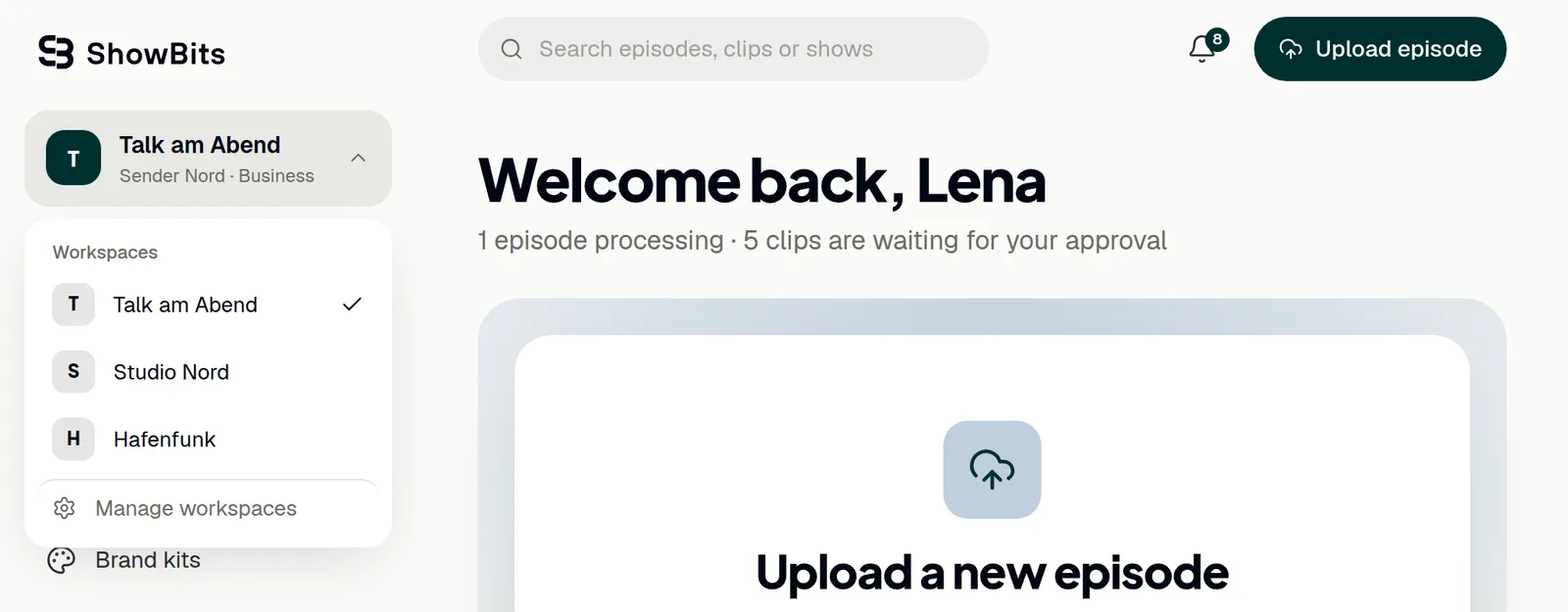
A workspace belongs to one client, brand or show, with its own team, brand kits and integrations.
- Click the workspace name at the top of the navigation.
- Choose a workspace from the list. ShowBits remembers the last one you used.
- To switch the language, click EN or DE at the bottom of the navigation, next to your name.
ShowBits is available in English and German, and your browser keeps your choice. Owners and organisation admins create and rename workspaces with Manage workspaces: see Team and settings.
Questions
I don't get a code by email.
Check the address and your spam folder. The code is valid for 10 minutes; after a short wait, Send a new code sends a new one. Use a different email lets you start again with another address.
Which passwords does ShowBits accept?
At least 10 and at most 72 characters. A phrase of several words is easy to remember and hard to guess.
I signed up with Google. Do I need a password?
No. You sign in with Google or with a code by email. You can set a password under Your account at any time.
How do I sign out on all my devices?
Open Settings → Security and click Sign out everywhere. Your account is signed out on every device; you then sign in again.