
Editing clips and quote cards
In the clip editor you adjust what the analysis suggested: the cut, the format, the subtitles and the texts for each channel. Quote cards have an editor of their own. Everyone in the workspace can edit clips.
Open the editor
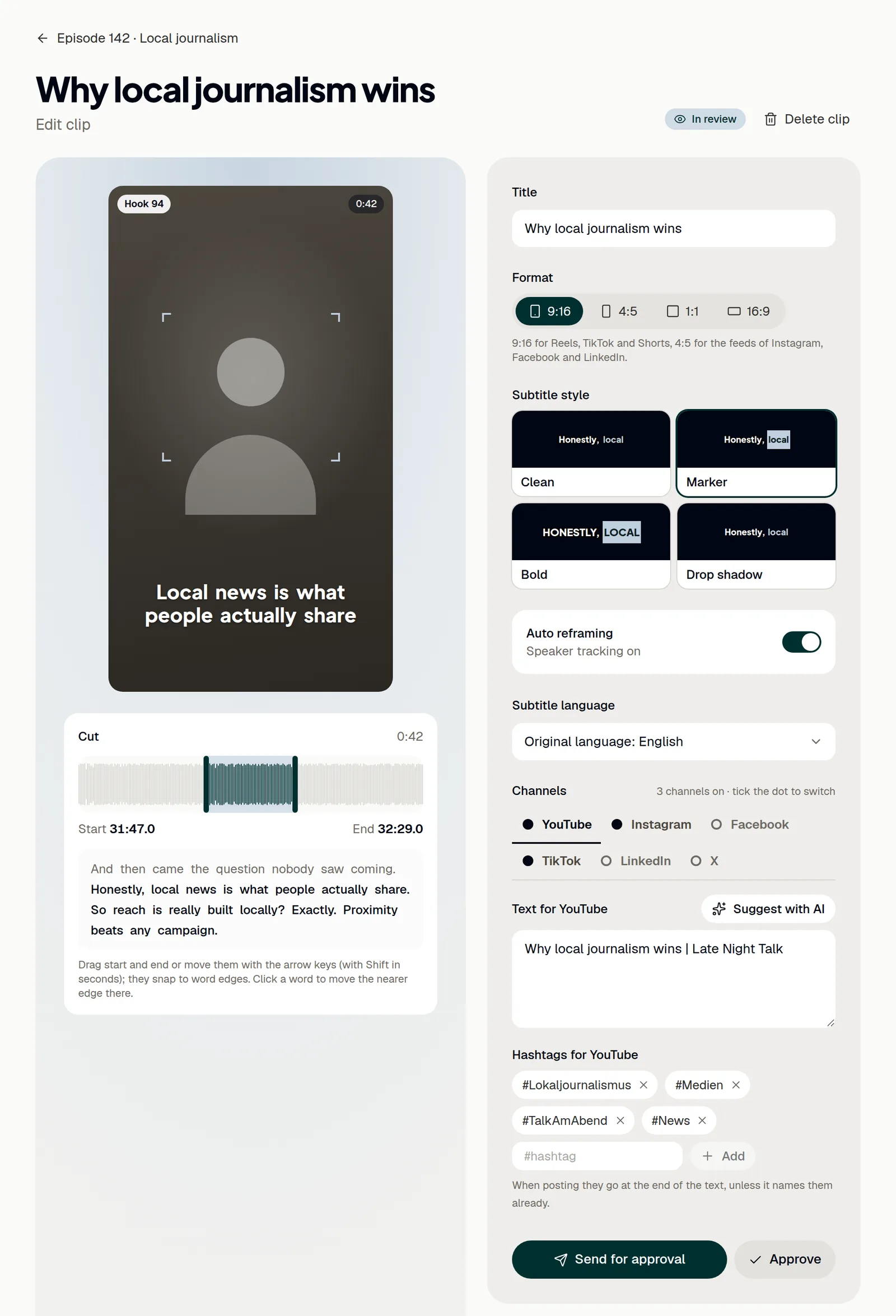
The editor shows the video on the left and the settings on the right. Your changes are saved when you click Send for approval, or Approve if you approve the clip yourself.
- Open Episodes and click the episode.
- Under Generated assets → Clips, click the clip.
- Play the video, or save it with Download video.
The clip is cut in the background; until it is ready, the editor says so. After changes, ShowBits cuts it again when you send or approve it; until then, the preview shows your changes.
Adjust the cut
- Under Cut, drag Start and End to where the clip should begin and end. They snap to the edges of words.
- Or select an edge and move it with the arrow keys: a tenth of a second per press, with Shift a whole second.
- Click a word below the waveform to move the nearer edge there.
- Click Reset to bring back the suggested cut.
Format, subtitle style and speaker tracking
- Choose the Format: 9:16 for Reels, TikTok and Shorts, 4:5 for the feeds of Instagram, Facebook and LinkedIn, or 1:1 or 16:9.
- Choose the Subtitle style: Clean, Marker, Bold or Drop shadow. The preview shows it as it will appear in the video.
- Switch Auto reframing on or off. With Speaker tracking on, the face of the person speaking stays in the picture in upright formats.
New clips start with the subtitle template of their brand kit: see Brand kits. A new format, style or cut means the clip is cut again.
Subtitle language and translation
Subtitles, titles, headlines and texts are created in the language spoken in the episode. The episode shows it, for example “Spoken: English”.
- Under Subtitle language, keep the Original language, or pick a language under Translate into.
- To see the translation in the editor first, click the translate button, for example “Translate to Français”.
- Click Send for approval: ShowBits cuts the clip again with the translated subtitles.
- To use the subtitles elsewhere, click Subtitles (WebVTT) under the video.
Translate into offers more than 30 languages.
Channels, texts and hashtags
Each channel is a tab under Channels. ShowBits plans and posts the clip on the channels that are switched on.
- Click the dot in front of a channel to switch it on or off. A channel switched off keeps its text and hashtags.
- Click the channel's name to open its text and hashtags.
- Write the text, or click Suggest with AI and check the suggestion before you save.
- Add a hashtag with Add, or remove one with its cross. Use the clip's hashtags brings back the clip's hashtags.
Every channel starts with the clip's hashtags, shown in grey; a channel's own hashtags are outlined. When posting, they go at the end of the text. A warning sign marks a channel that is on but has no text. Suggest with AI also suggests hashtags that suit the platform; YouTube Shorts get none.
Check, send for approval or delete
Check the hints before you send. After Suggest with AI, Notes on the suggestion lists what still goes against a platform's rules, for example a text that is too long or too short, hashtags in the text, web addresses on LinkedIn and X, @-mentions on X or too many emoji. With editorial guidelines, included from the Business plan, Per guidelines shows blocked terms and your house terms as you write.
- Check the clip's Title at the top of the settings.
- Click Send for approval. This saves all your changes and starts the approval.
- While the clip waits for approval, you can click Approve instead; this also saves your changes.
- To delete the clip, click Delete clip at the top and confirm with Delete clip.
An approved clip changes only through a new approval: the button then reads Send for approval again. Deleting is final and removes the clip's texts, approvals and scheduled posts. Thumbnail headlines are written on the episode, with Headlines with AI on the Thumbnails tab. More on approvals: Approving clips.
Edit a quote card
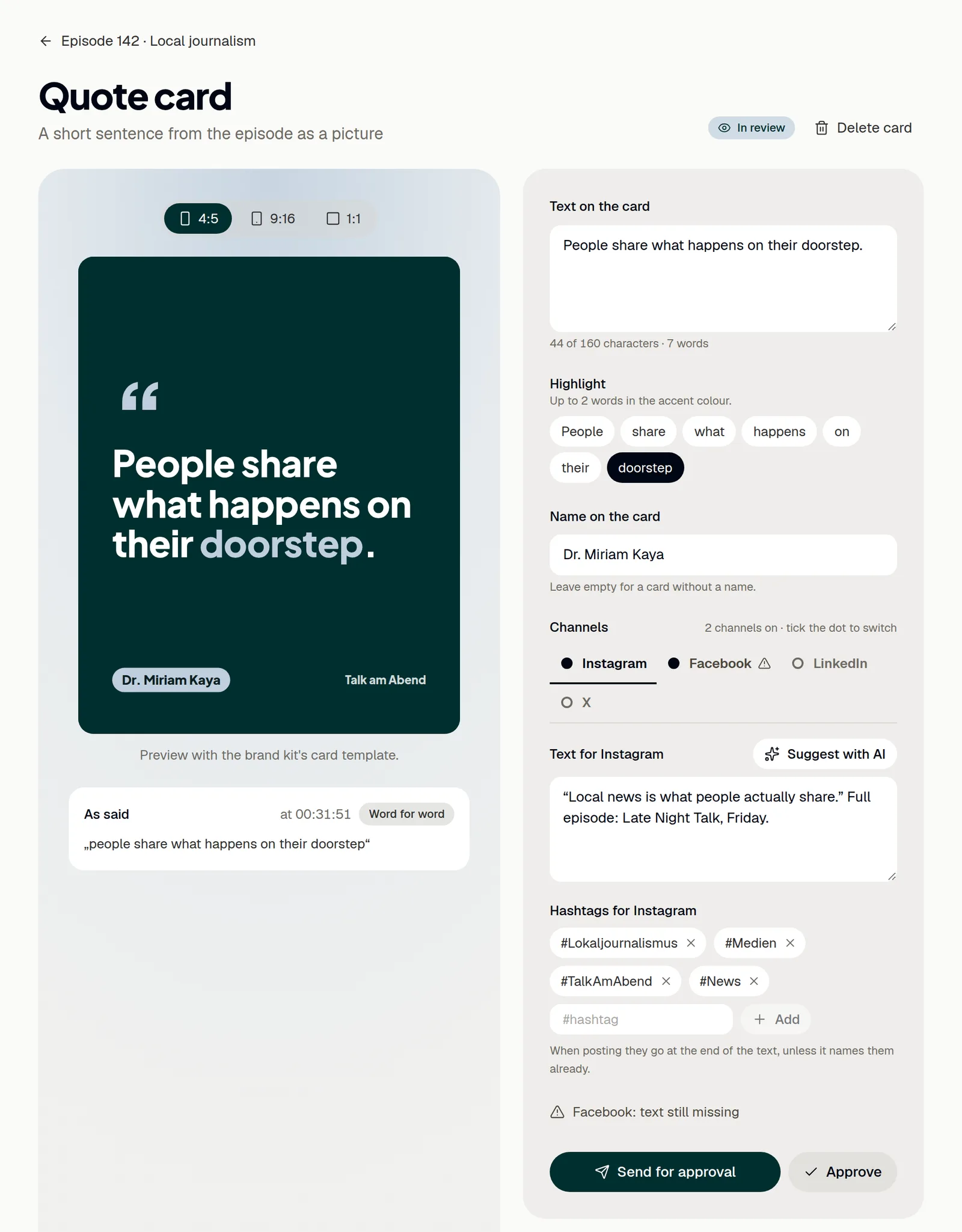
Quote cards are short sentences from the episode as pictures. Their look comes from the Quote card template in the brand kit of the show: background, fonts, colours and where the quote, the name and the logo sit.
- On the episode, click a card under Quote cards.
- Switch the preview between 4:5, 9:16 and 1:1. Once the card is drawn, you can download each format.
- Change the Text on the card if needed. As said shows what was said word for word, and when.
- Under Highlight, click up to two words to show them in the accent colour.
- Check the Name on the card field, or leave it empty for a card without a name.
- Choose channels and texts as for clips; quote cards go to Instagram, Facebook, LinkedIn and X.
- Click Send for approval.
Keep the text short: the counter shows the characters, up to 160, and the words. After saving, ShowBits draws the card again; until then, the preview shows a sketch. A changed text is marked Changed by hand. ShowBits fills in a name only when it is said in the episode; check that it belongs to the person quoted.
Questions
Why doesn't the video show my changes?
The video shows the clip as it was last cut. When you send it for approval or approve it, ShowBits cuts it again with your changes; until then, the preview shows them.
How do I save my changes?
With Send for approval, or with Approve while the clip waits for approval. Both save all changes in the editor.
Does cutting a clip again count towards my allowance?
Yes. Every video ShowBits cuts counts its length towards your output minutes, also when a clip is cut again after a change to the cut, format, subtitle style or language.
Can I still re-cut a clip from an older episode?
For a new cut, ShowBits needs the episode's original. The original of an uploaded episode is deleted automatically after 30 days; after that, its clips can no longer be re-cut. An imported episode can be re-cut as long as its file is still in the storage.