
Brand kits
A brand kit holds the look of a show or brand: logo, colours, fonts and tone of voice, with templates for subtitles, logo and quote cards. Clips, thumbnails and quote cards are drawn with the brand kit of their show. Admins create and edit brand kits.
Create and edit a brand kit
Brand kits lists the brand kits of the workspace on the left, each with the number of shows that use it.
- Open Brand kits in the navigation.
- Click New brand kit, or choose a brand kit in the list.
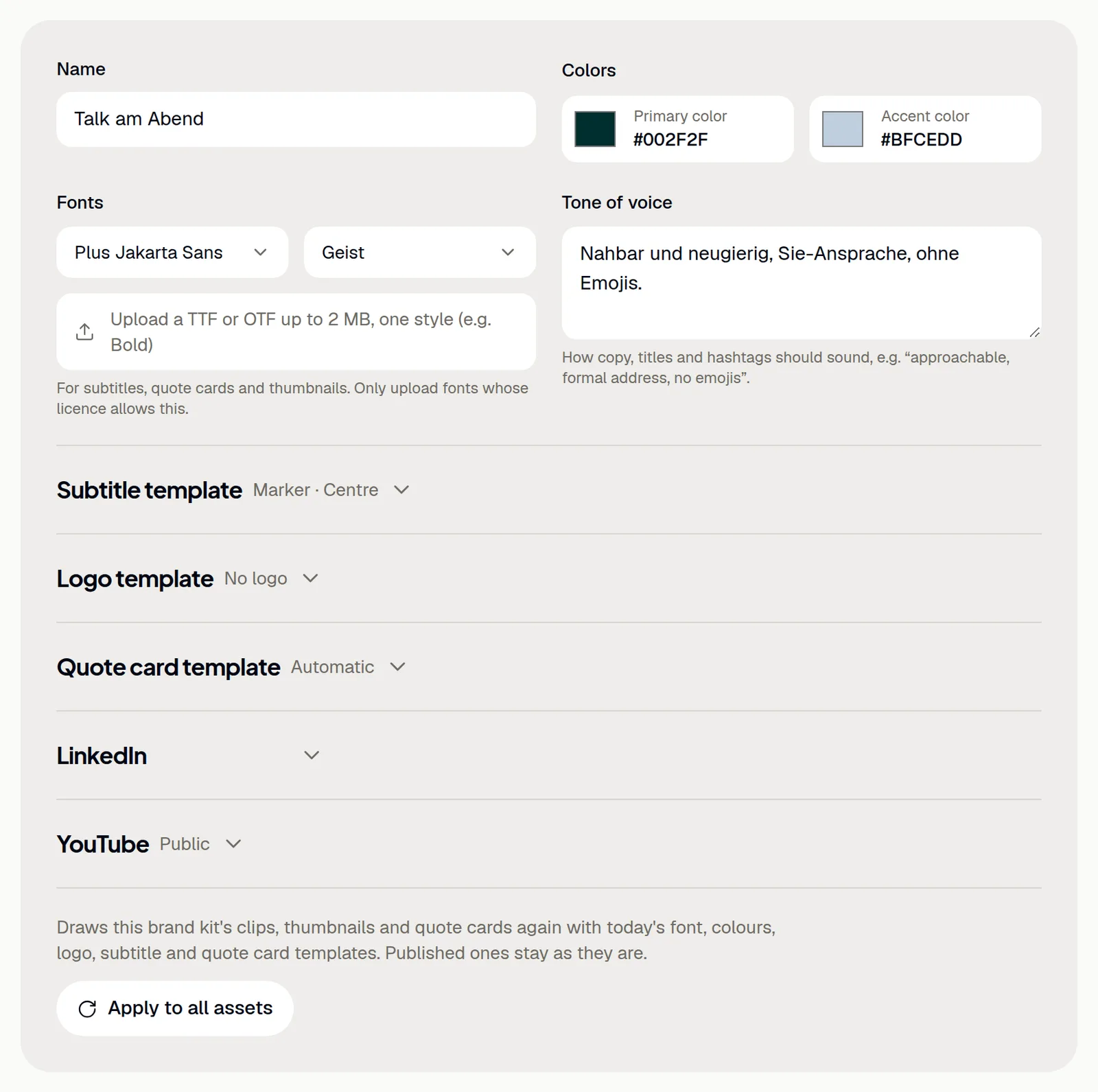
- Enter a name under Name.
- Choose the Primary color and the Accent color.
- Under Fonts, choose the fonts for Headings and Body text.
- Optional: under Own font, upload a TTF or OTF file up to 2 MB with one style, for example Bold.
- Describe the Tone of voice for copy, titles and hashtags, for example “approachable, formal address, no emojis”.
Changes are saved a moment after the last edit, and the Preview shows the result. An own font becomes the heading font, in which subtitles, quote cards and thumbnails appear. Only upload fonts whose licence allows this; variable fonts do not work.
Subtitle template
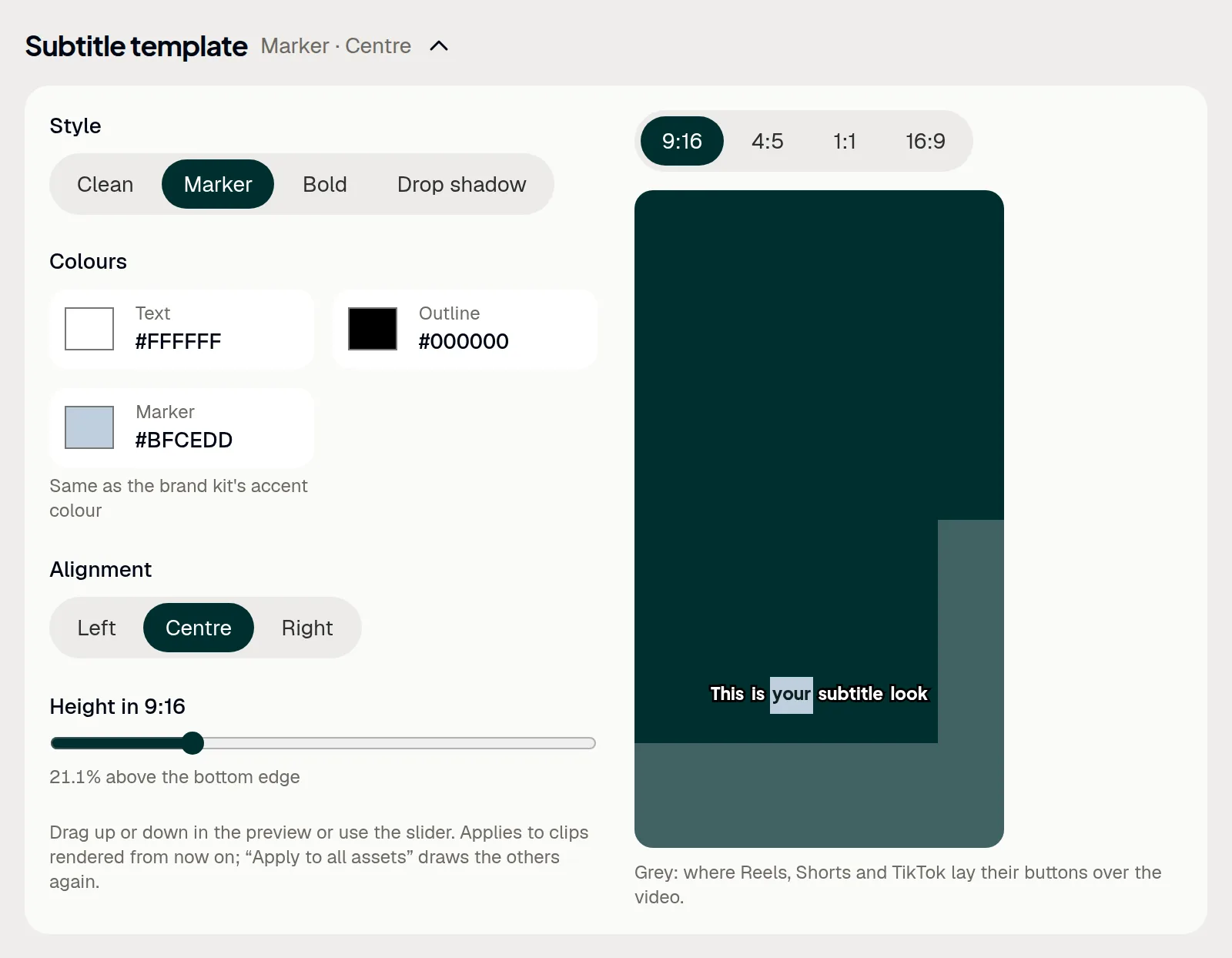
The subtitle template sets how subtitles look in the clips of the brand kit. New clips start with it.
- Open Subtitle template.
- Choose the Style: Clean, Marker, Bold or Drop shadow.
- Under Colours, choose the colours the style uses, for example for Text and Outline.
- Choose the Alignment: Left, Centre or Right.
- For each format, drag the subtitles up or down in the preview, or use the slider.
Without a colour of its own, the highlight takes the brand kit's accent colour. Grey areas in the preview show where Reels, Shorts and TikTok lay their buttons over the video. The template applies to clips rendered from now on; Apply to all assets draws the others again.
Logo template and logo in the video
- Open Logo template.
- Upload the logo under Logo: PNG or SVG with a transparent background, up to 512 KB.
- Switch on Show the logo in clips and thumbnails.
- Choose a format and drag the logo to its place in the preview.
- Drag the bottom right corner to resize it, or use the Size and Opacity sliders.
- Optional: Into a corner puts it into a corner, clear of the controls of Reels, Shorts and TikTok.
Replace and Remove change the logo. In the preview, a dashed line shows where the subtitles are. The logo applies to clips rendered from now on.
Quote card template
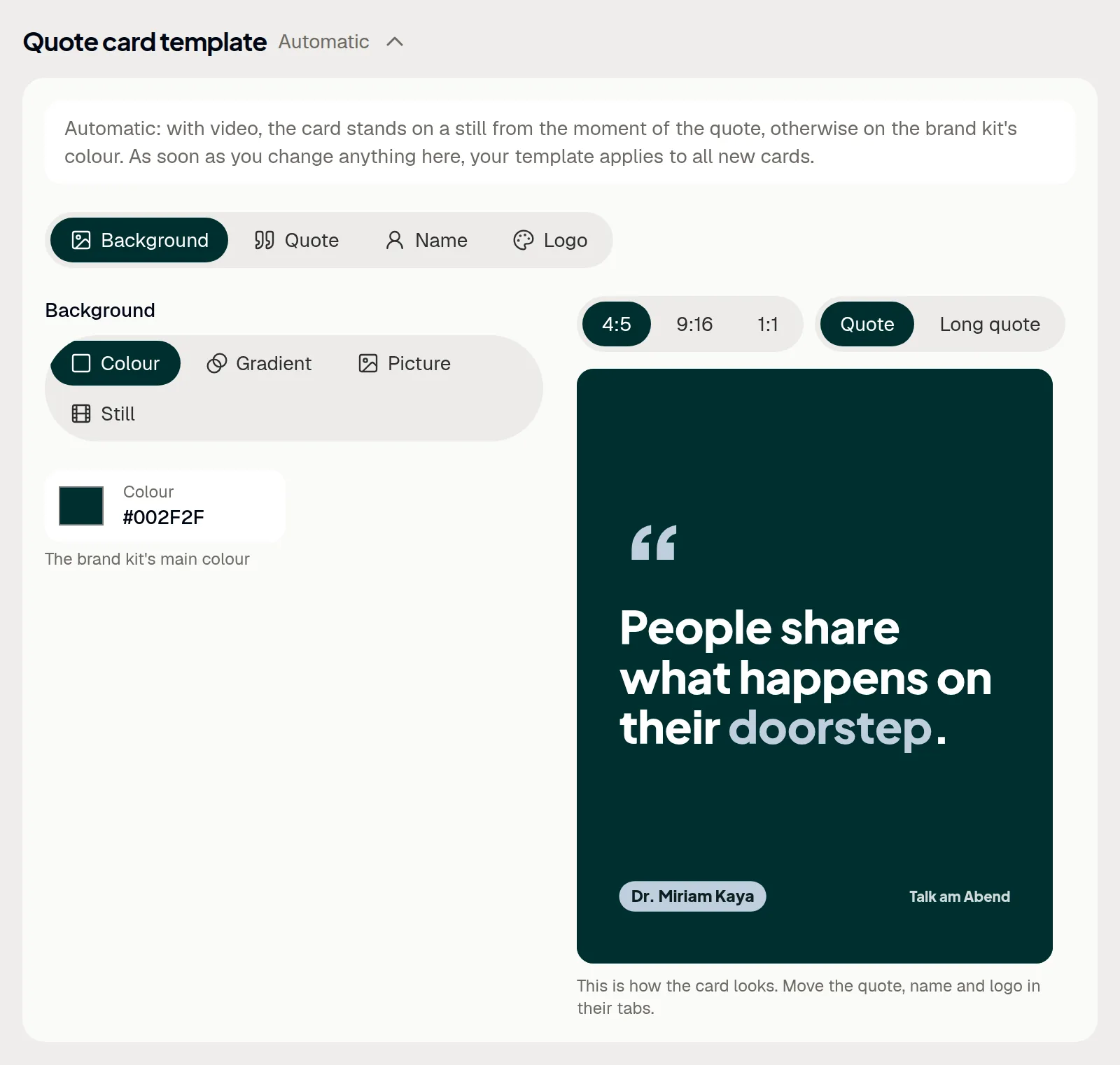
Without a template of your own, a card stands on a still from the moment of the quote, or on the brand kit's colour. As soon as you change something here, your template applies to all new cards of the brand kit.
- Open Quote card template.
- On the Background tab, choose Colour, Gradient, Picture or Still. Over a picture or still, Darken shades the card from below, from above or all over.
- On the Quote and Name tabs, choose the Font, Weight, Style, Colours and Rotation.
- On the Logo tab, switch Logo on the cards on or off.
- For each format (4:5, 9:16, 1:1), drag the quote, the name and the logo to their place in the preview. The corner of a box changes its size.
For a picture, drag it in the preview to choose the crop for each format. With the keyboard, the arrow keys move a box, + and − change its size, and [ and ] rotate it. Reset to automatic brings back the original look. Existing cards are drawn again with Apply to all assets.
LinkedIn and YouTube settings
These settings apply to all LinkedIn and YouTube posts of the brand kit's shows. They are saved by themselves.
- Open LinkedIn.
- Under Where to listen, enter the show's page, for example on Spotify or your website, starting with
https://. - Under Company pages to tag, click Add page.
- Enter the name exactly as on LinkedIn under Name on LinkedIn, and the page's number or address under Page number or address, for example
linkedin.com/company/12345678. - Switch First comment with the link and Second comment the next morning on or off.
- Open YouTube and choose the Visibility: Public, Unlisted or Private.
- Switch on Made for kids or Altered or synthetic content where it applies.
Up to five company pages are possible. ShowBits posts on LinkedIn on the connected personal profile. The company pages are tagged in the text when it names them exactly; the AI writes these names into LinkedIn texts. A single post can differ from these settings in the plan, see Scheduling and publishing.
Apply to all assets
After a change, existing clips, thumbnails and quote cards keep their look until you draw them again.
- Click Apply to all assets below the templates.
- Check how many clips and quote cards will be drawn again, and how many output minutes rendering the videos costs.
- Click Render again.
Every clip gets the brand kit's subtitle template; cut, format and language stay. Published clips stay as they are, and until the new versions are ready, the current ones stay. Thumbnails and quote cards cost no minutes.
White label for a workspace
With white label, everyone in the workspace sees the app in the look of a brand kit, without the ShowBits logo.
- Open Brand kits.
- Switch on White label for this workspace.
- Under Colors from brand kit, choose the brand kit whose colours the app takes.
Questions
Who can create and change brand kits?
Admins of the workspace. Everyone in the workspace sees the brand kits.
Do changes to a brand kit change published clips?
No. Published clips stay as they are, also with Apply to all assets.
Which logo file works?
A PNG or SVG with a transparent background, up to 512 KB. An SVG must not contain scripts or load content from elsewhere; export it as a plain graphic.