
From sign-up to your first clip
New to ShowBits? This page takes you from the sign-up to your first scheduled clip: start the trial, set up your workspace, upload an episode, then approve and schedule a clip. Each step links to the page with the details.
Start the trial
The trial lasts 14 days and needs no payment details. It ends by itself and does not turn into a paid contract.
- On the website, click “Start free trial”, or open
app.showbits.ai/signup. - Click Continue with Google, or enter your Email address and click Continue with email.
- With email, enter the Code from the email and click Continue.
- Choose a password of at least 10 characters.
- Set up your company: the name of your organisation, your first workspace and the plan for the trial, Creator or Business. A plan you picked on the website stays selected.
- Confirm that you act in your business or profession and that you accept the terms and the data processing agreement, then start the trial.
Invited to a team? You can join it instead: see Sign-in and account.
Set up your workspace
Before the first episode, an admin can prepare the workspace. Each of these steps is optional and can be done at any time.
- Give your show its look in a brand kit: logo, colours, fonts and the style of the subtitles. See Brand kits.
- Invite your team and give everyone a role. See Team and settings.
- Connect the storage you work with and the channels you post to. See Adding episodes and Scheduling and publishing.
Find your way around
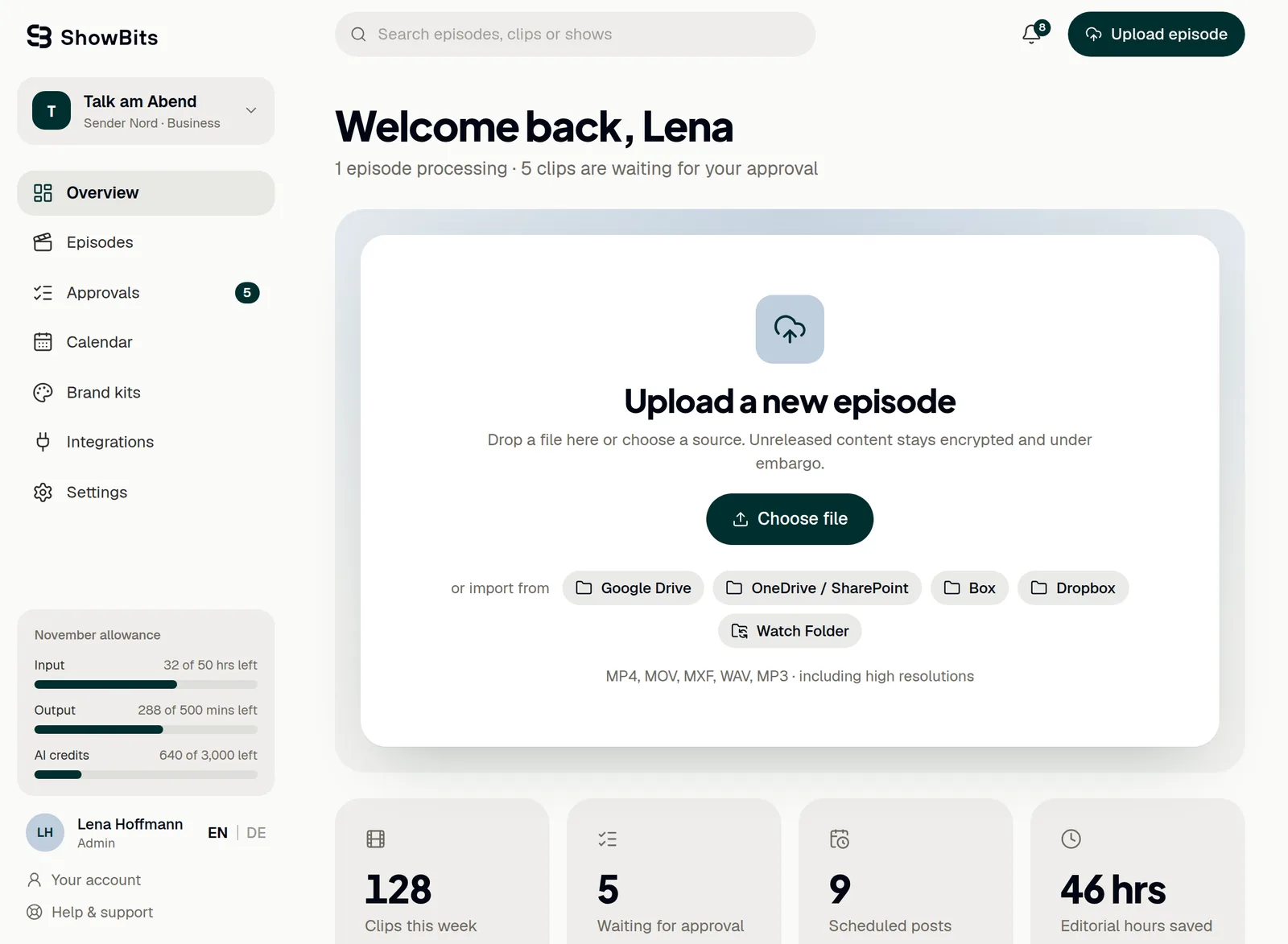
On the left is the navigation with Overview, Episodes, Approvals, Calendar, Brand kits, Integrations and Settings; on a phone, open it with the menu icon. At the top are the search, the bell with notifications and Upload episode. At the bottom left you find this month's allowance, your name and role, the language switch, Your account, Help & support and Sign out.
Several workspaces? Switch between them with the workspace name at the top of the navigation: see Sign-in and account.
Upload your first episode
- Open Overview.
- Drag the file onto Upload a new episode, or click Choose file. ShowBits takes MP4, MOV, MXF, WAV and MP3.
- To import from cloud storage instead, click Google Drive, OneDrive / SharePoint, Box or Dropbox below it, once an admin has connected the storage.
- Follow the upload and the analysis under Processing: Upload, Analysis, Assets, Done.
Keep the page open until the upload is done; you can move around in ShowBits meanwhile. More on uploads, imports and the embargo: Adding episodes.
Watch the analysis and open a clip
- When the analysis is done, ShowBits shows Analysis complete with the number of highlights found.
- Open Episodes and click the episode.
- Under Generated assets → Clips, click a clip. The clip editor opens.
- Check the cut, the subtitles and the text for each channel.
The clip's video is cut in the background; until it is ready, the editor says so. How to change a clip: Editing clips.
Send for approval and approve
New clips wait for approval as soon as the analysis is done. Nothing is posted without an approval.
- If you changed the clip, click Send for approval. This saves your changes.
- Open Approvals. The number next to it shows how many clips are waiting.
- Check the clip and click Approve, or Send back with a comment.
If your workspace has a duty editor besides other people, approval has two steps: editorial first, then the duty editor. Otherwise one click approves. Details: Approving clips.
Schedule the clip
- Open the approved clip, for example under Approvals → Approved with Plan.
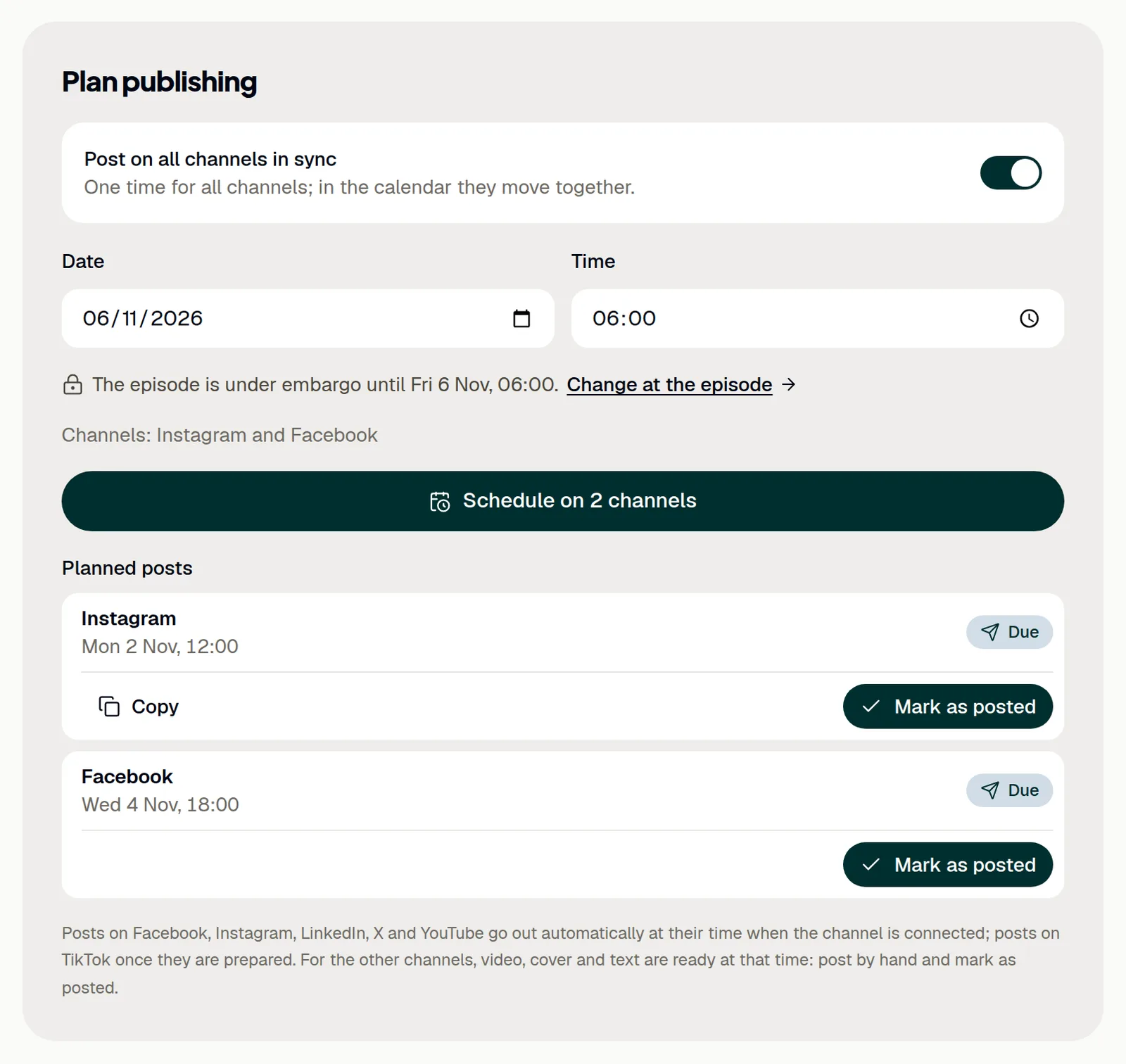
- Under Plan publishing, leave Post on all channels in sync on to set one time for all channels, or switch it off to give each channel its own.
- Choose the date and time and click Schedule.
ShowBits posts on the channels switched on in the editor. Times are German time (Europe/Berlin), and nothing can be scheduled before the episode's embargo ends. Connected channels post by themselves, TikTok once the post is prepared; for the others, video, cover and text are ready at that time. Details: Scheduling and publishing.
Questions
Do I need payment details for the trial?
No. The trial lasts 14 days without payment details. Without a payment method it ends by itself, and nothing is charged.
Which plan should I choose for the trial?
Creator is for professional creators and podcasters: one workspace and 10 hours of video input a month. Business is for teams and newsrooms: five people, up to four workspaces and 50 hours of video input a month.
What happens when the trial ends?
The banner at the top of every page shows the end date. Owners and organisation admins set up billing under Settings → Billing; with a payment method, the plan carries on without a break. Without one, the trial ends by itself and the workspace is locked. Owners and organisation admins can book a plan there and keep working.