
Approving clips
Nothing goes live in ShowBits without approval. Here you approve clips and quote cards in one or two steps, send them back with a comment and follow approved clips until they are published.
Open approvals
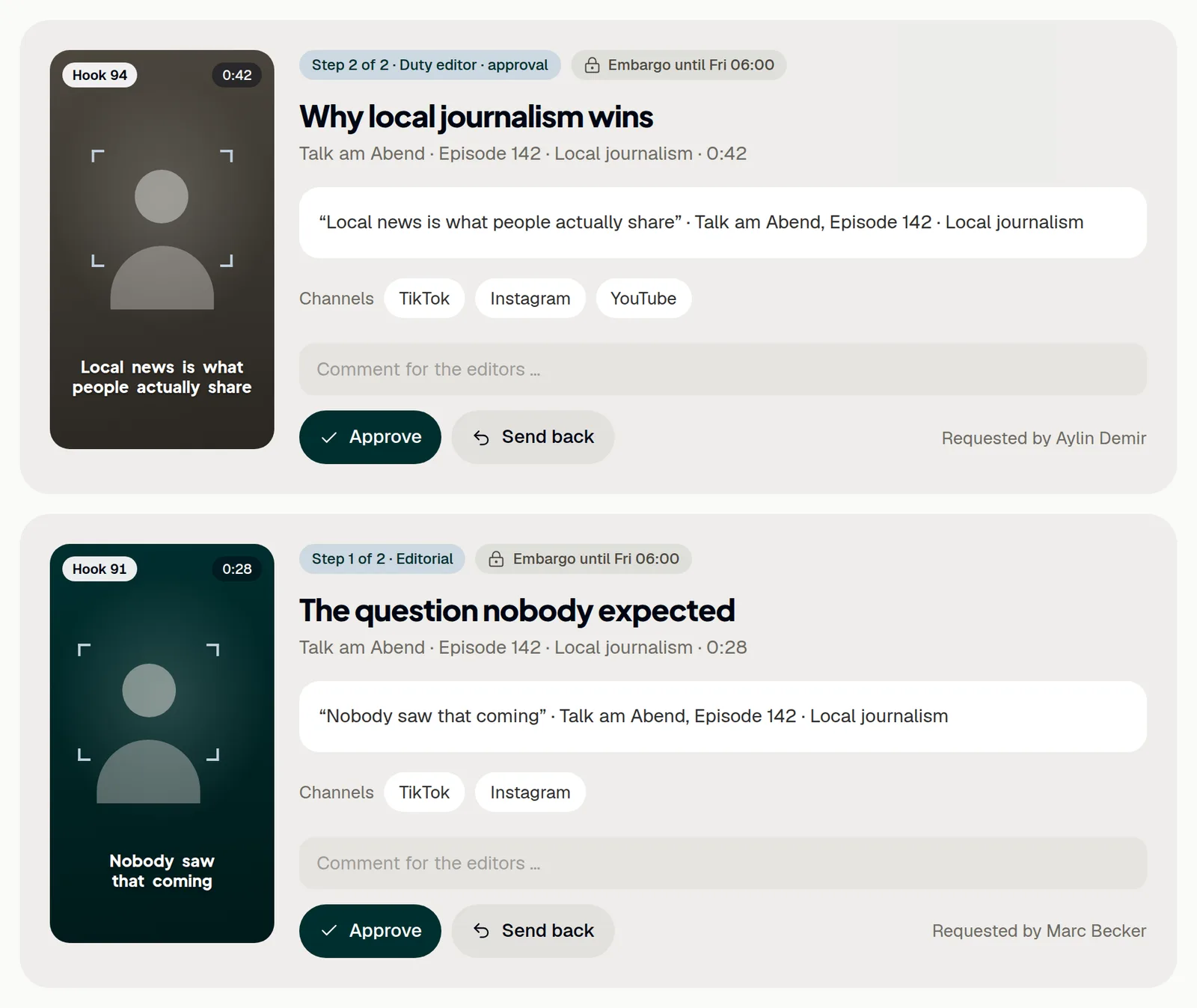
Clips and quote cards that wait for approval are listed under Approvals → Open. The number next to Approvals in the navigation shows how many are waiting, and the Overview lists them under Ready for approval. Each card shows the step, the embargo, the text, the channels and who asked for the approval.
- Open Approvals in the navigation.
- Check the clip on its card. A click on the preview opens it in the clip editor.
- If you like, write a comment in the comment field.
- Click Approve.
New clips from the analysis appear here by themselves. A clip that was sent back appears again once it is sent for approval again. In the clip editor, Approve does the same.
One step or two
If the workspace has a person with the role Duty editor · approval besides other people, every clip goes through two steps. Step 1 is the text approval: the card shows Step 1 of 2 · Editorial, and Approve forwards the clip. Step 2 is the sign-off: the card shows Step 2 of 2 · Duty editor · approval, and only Approve in this step releases the clip. If you work alone in the workspace, or the team has no duty editor, one click on Approve releases the clip.
A duty editor counts once they have accepted the invitation. Roles are set under Settings → Team & roles, see Team and settings.
Send a clip back
Send a clip back when the cut, the text or the channels need changes.
- Write in the comment field what should change.
- Click Send back. The clip now shows Needs changes.
- Make the changes in the clip editor.
- Click Send for approval in the clip editor.
The comment is saved with the decision in the audit log. A clip that was sent back can be approved only after it has been sent for approval again. How to edit a clip: Editing clips and quote cards.
Approved clips and posting now
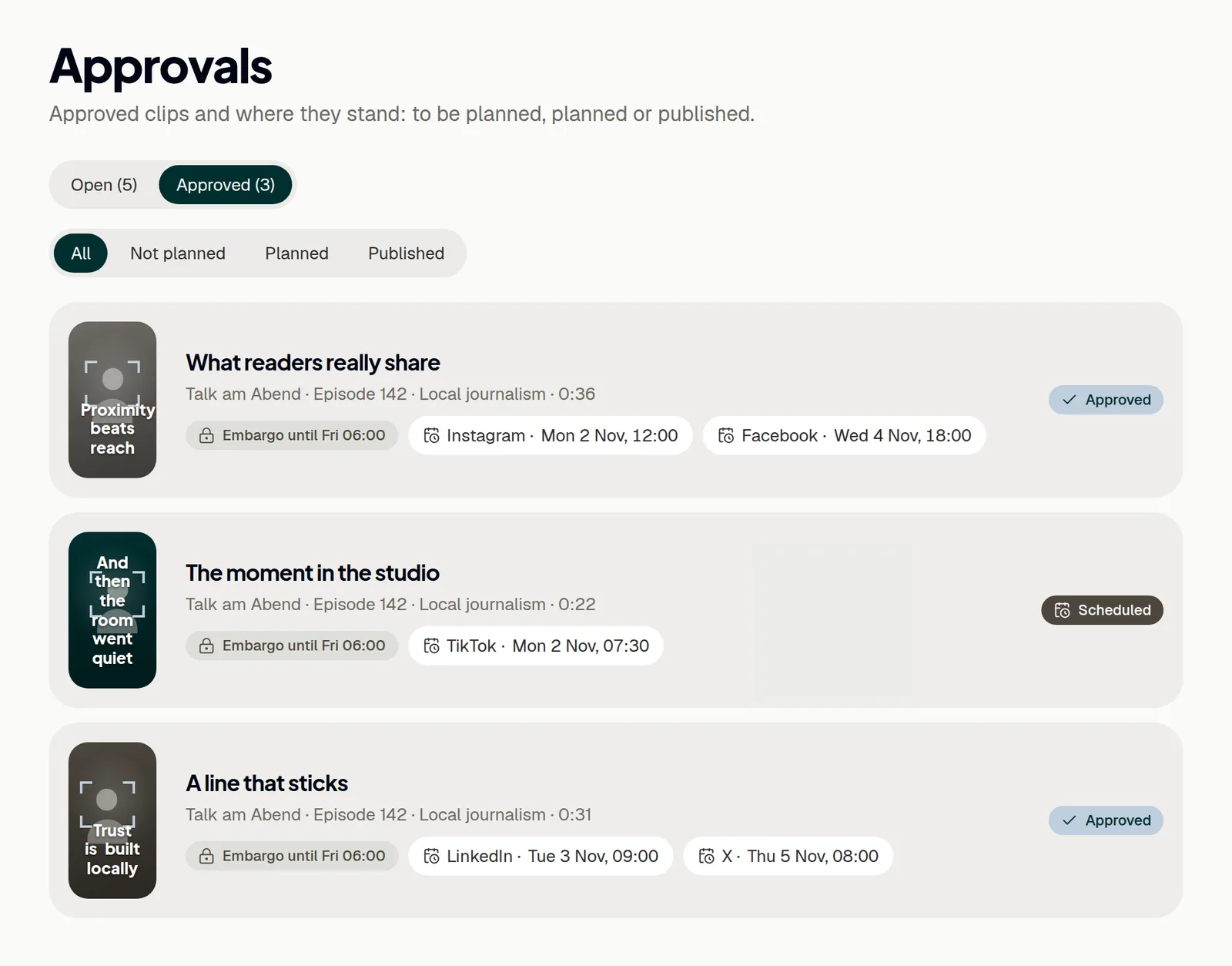
Approvals → Approved lists the approved clips with their posts. Filter them by Not planned, Planned or Published; clips that are not planned stand at the top. Plan opens the planning of a clip in the clip editor, see Scheduling and publishing.
- To post an approved clip right away, click Post now at the clip.
- Tick the channels it should go to. The clip's own channels are ticked already.
- Click Post now in the dialog.
Post now posts on connected channels, each with the channel's text from the editor. It is not offered while the episode is under embargo. For TikTok, the clip editor opens next, because TikTok wants a person to prepare every post.
Remove a published post
Posts that ShowBits published itself on Facebook, Instagram, LinkedIn, X or YouTube are deleted by ShowBits on the platform; admins and duty editors can have this done. Other posts, for example on TikTok or posted by hand, you delete on the platform and then take them off the plan in ShowBits.
- Open Approvals → Approved, or open the clip and go to Planned posts.
- Click the bin icon at the published post (in the clip editor: Remove).
- If ShowBits deletes the post, confirm with the button that names the platform, for example Delete on Facebook.
- Otherwise, delete the post on the platform first; the dialog links to it.
- Then click Deleted, take off the plan.
At most 5 posts an hour and 20 a day can be deleted per workspace. On Instagram, an admin first allows it at the Instagram card under Integrations with Allow deleting. The post then leaves the plan, and a clip without posts can be scheduled again. The audit log records who had the post deleted.
Notifications
The bell at the top shows the approval steps of the last 30 days as soon as someone else submits, forwards, approves or sends back a clip. A number on the bell counts the new ones. Opening Notifications marks them as read, and a click on an entry opens the clip.
Approval steps can also be reported in a Telegram group, with a link to the clip; approving then happens in ShowBits, see Telegram: approvals on the go. With n8n, Zapier or Make, clips can be approved from Slack or Teams in the name of the person responsible for the automation, see Automations with n8n, Zapier and Make.
Questions
What do the statuses of a clip mean?
In review: the clip waits for approval. Needs changes: it was sent back. Approved: it is released and can be scheduled. Scheduled: posts are planned. Published: all its planned posts are out.
Why does a clip go through one step only?
The second step needs a person with the role Duty editor · approval who has accepted the invitation, and at least one other person in the workspace. Without a duty editor, or if you work alone, one click on Approve releases the clip.
Can I still change an approved clip?
Yes. Changes to an approved clip need a new approval: make them in the clip editor and click Send for approval again. Its planned posts wait until it is approved again.