
Telegram: approvals on the go
Your own Telegram bot reports every approval step in your team's group, with a link to the clip. You approve in ShowBits, on your phone as well.
- Who sets it up
- Admins of the workspace
- Plans
- Every plan
- What goes to Telegram
- Clip title, episode title and the approval step, with a link to the clip. No names, comments, texts or dates.
Create your bot
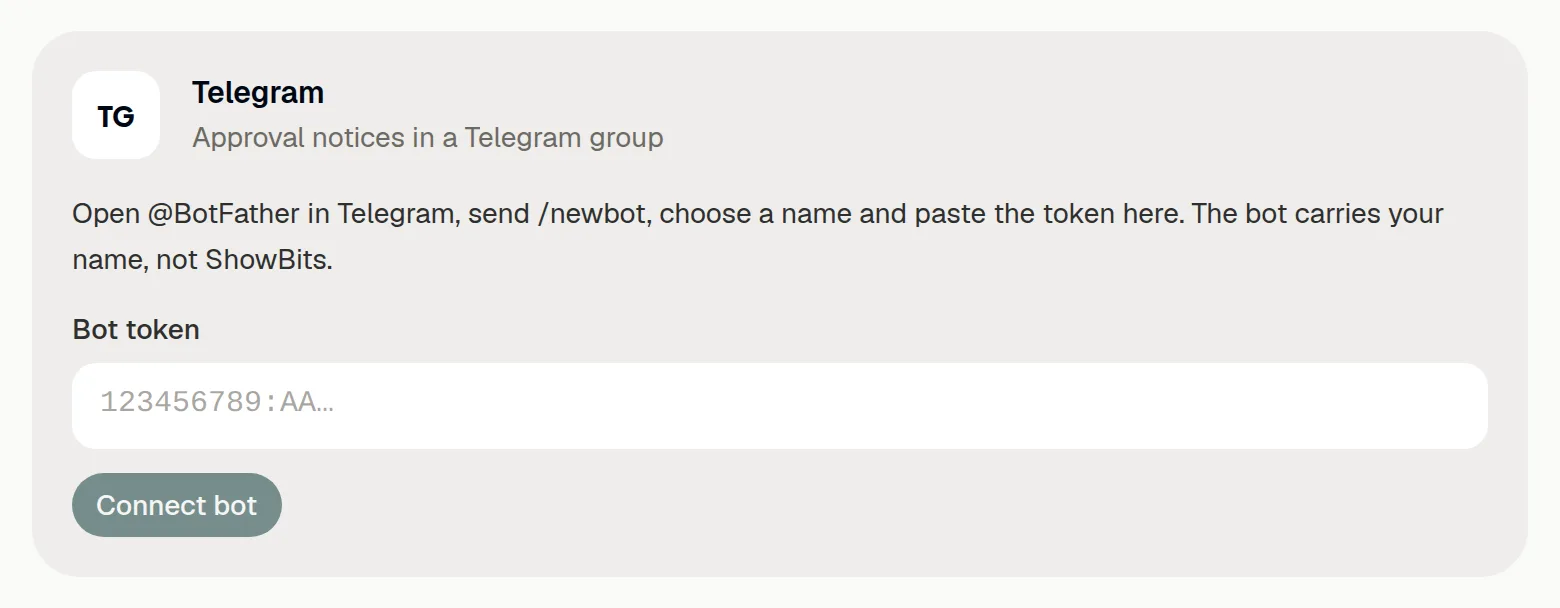
The bot belongs to you and carries your name, not ShowBits. You create it once in Telegram with @BotFather, Telegram's own bot for making bots. Telegram explains this in its guide to creating a bot.
- In Telegram, open a chat with @BotFather and send
/newbot. - Enter a name for the bot, for example the name of your show or newsroom.
- Enter a username for the bot. It must end in
bot, for exampletalkamabend_bot. - Copy the token that @BotFather sends you, a code like
123456789:AA….
Keep the token to yourself: whoever has it controls the bot. The username cannot be changed later.
Connect the bot in ShowBits
- Open Integrations in ShowBits.
- Under Approvals on the go, paste the token into Bot token on the Telegram card.
- Click Connect bot.
ShowBits checks the token with Telegram and stores it encrypted. Only admins of the workspace see this form; everyone else sees whether the bot is set up.
Choose the group
The bot reports to one group. Use an existing group of your team, or create one in Telegram first.
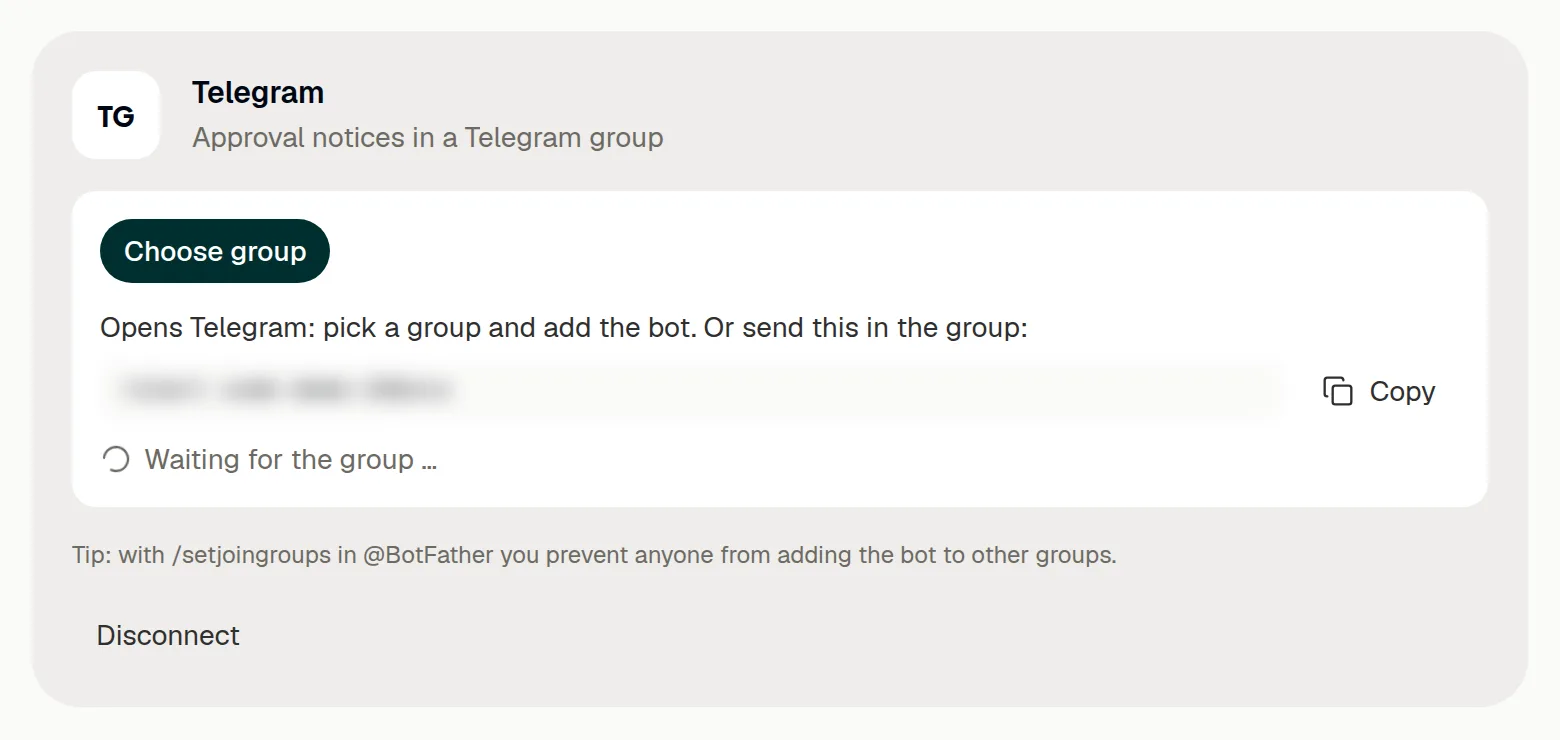
- Click Choose group on the Telegram card. Telegram opens.
- Choose the group and add the bot to it.
- Back in ShowBits, wait until the card names the group. The bot confirms in the group.
- Click Send test notice.
If Telegram does not open on this device, send the line the card shows, /start followed by a code, in the group. With /setjoingroups in @BotFather you prevent anyone from adding the bot to other groups.
What the bot reports
For every approval step, the bot sends one sentence with the clip and episode title, linked to the clip in ShowBits: when a clip is ready for text approval, ready for sign-off by the duty editor, ready for publishing, or sent back for revision. Names, comments, texts and dates do not go to Telegram. The bot writes in the language ShowBits showed the admin who connected it: English or German.
The link opens the clip in ShowBits for people who can sign in to the workspace; there you approve it or send it back, as described in Approvals. The notices also cover clips whose episode is under embargo, so add only people to the group who may see these titles.
Commands in the group
In the group that receives the notices, the bot answers three commands: /status shows how many clips wait for approval at each step, /approvals sends a button to the approvals in ShowBits, and /help lists the commands. The commands work only in that group.
The bot understands /approvals and /help as well as the German /freigaben and /hilfe. If other bots are in the group, add your bot's username to the command, for example /status@talkamabend_bot.
Change the group, disconnect or delete the bot
Choose another group moves the notices to a new group. If someone removes the bot from the group, or Telegram no longer accepts the token, the card says so: choose the group again, or paste a new token from @BotFather (/token). The same bot keeps its group.
- To stop the notices, click Disconnect on the Telegram card. ShowBits deletes the token.
- To delete the bot itself, send
/deletebotto @BotFather. This cannot be undone.
Notices already sent stay in the group; ShowBits does not delete them.
Questions
Can I approve clips in Telegram?
No. Each notice links to the clip in ShowBits; you approve it or send it back there, on your phone as well.
Who can open the links?
Everyone in the group sees the notices, but a link opens the clip only for people who can sign in to the workspace.
Nothing arrives in the group. What can I check?
Check that the Telegram card names the group, and send a test notice. If the bot was removed from the group or Telegram no longer accepts the token, the card says so and what to do.
How do I change the language of the notices?
Disconnect the bot, switch ShowBits to the other language with EN or DE next to your name in the menu, connect the bot again with its token and choose the group.
Do I need a bot for each workspace?
Yes. Each workspace connects its own bot, created with @BotFather as described above.