
Automations with n8n, Zapier and Make
n8n, Zapier, Make and similar tools reach your workspace with a connection's own key. Your workflows can read clips and episodes, approve clips or send them back, and receive webhooks, on every plan and without the REST API. The setup guide for n8n, Zapier and Make describes every request.
- Who sets it up
- Admins of the workspace, owners and admins of the organisation
- Plans
- Every plan
- What a connection may do
- Read clips and episodes, approve or send back an approval step, receive webhooks. Nothing else: no imports, posts, embargo changes, team or settings.
Create a connection
Give each workflow tool its own connection. Whoever creates a connection answers for it.
- Open Integrations and, under Developers & systems, click Manage automations on the n8n, Zapier & Make card.
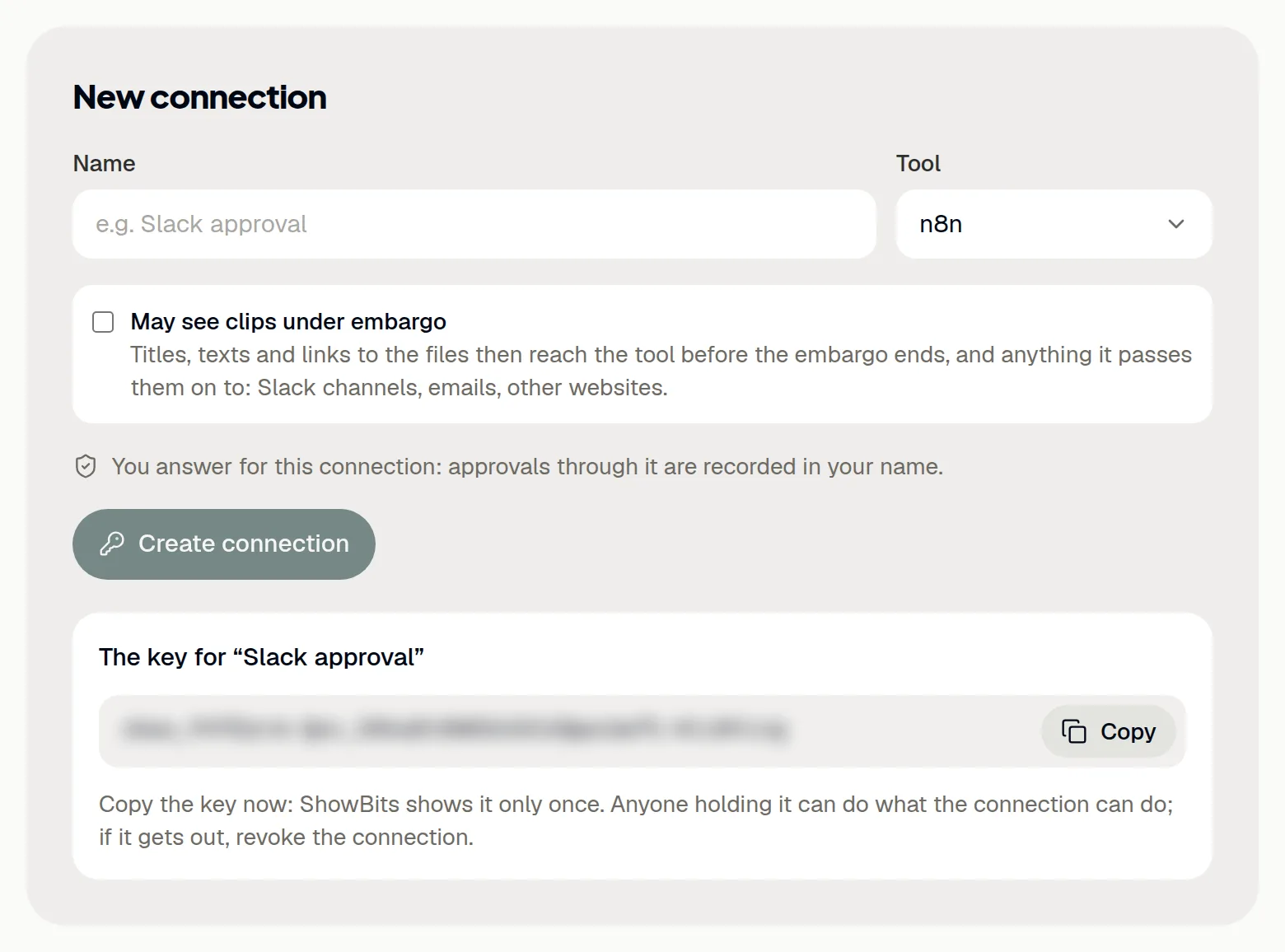
- Under New connection, enter a Name, for example “Slack approval”, and choose the Tool.
- Tick May see clips under embargo only if the workflow needs clips before their embargo ends.
- Click Create connection.
- Click Copy and store the key in your tool. ShowBits shows it only once.
If a connection may see clips under embargo, their titles, texts and links to the files reach the tool before the embargo ends, and from there every place the tool passes them on to, such as Slack channels or emails. Without it, the connection sees clips once their embargo is over.
Set it up in n8n
In n8n, the key goes into a credential that every request to ShowBits uses.
- In n8n, go to Credentials → Add credential → Header Auth.
- As the name, enter
Authorization. - As the value, enter
Bearer, a space and the key. - Use the credential in an HTTP Request node. A first test is
GET https://app.showbits.ai/api/automation/v1/me: it answers with the connection and its workspace. - For events, add a Webhook node (POST) and add its Production URL to the connection's webhooks in ShowBits.
Without Bearer and the space before the key, ShowBits refuses every request. Self-hosted n8n needs an https address that can be reached from the internet.
Set it up in Zapier or Make
Zapier and Make reach ShowBits with their HTTP modules: Webhooks by Zapier and Make's HTTP app.
- Add the header
Authorizationwith the valueBearer, a space and the key to every request to ShowBits. - For events, create a webhook address in the tool and add it to the connection's webhooks in ShowBits.
Tools that subscribe to events by themselves also appear in the connection's webhooks.
Add webhooks
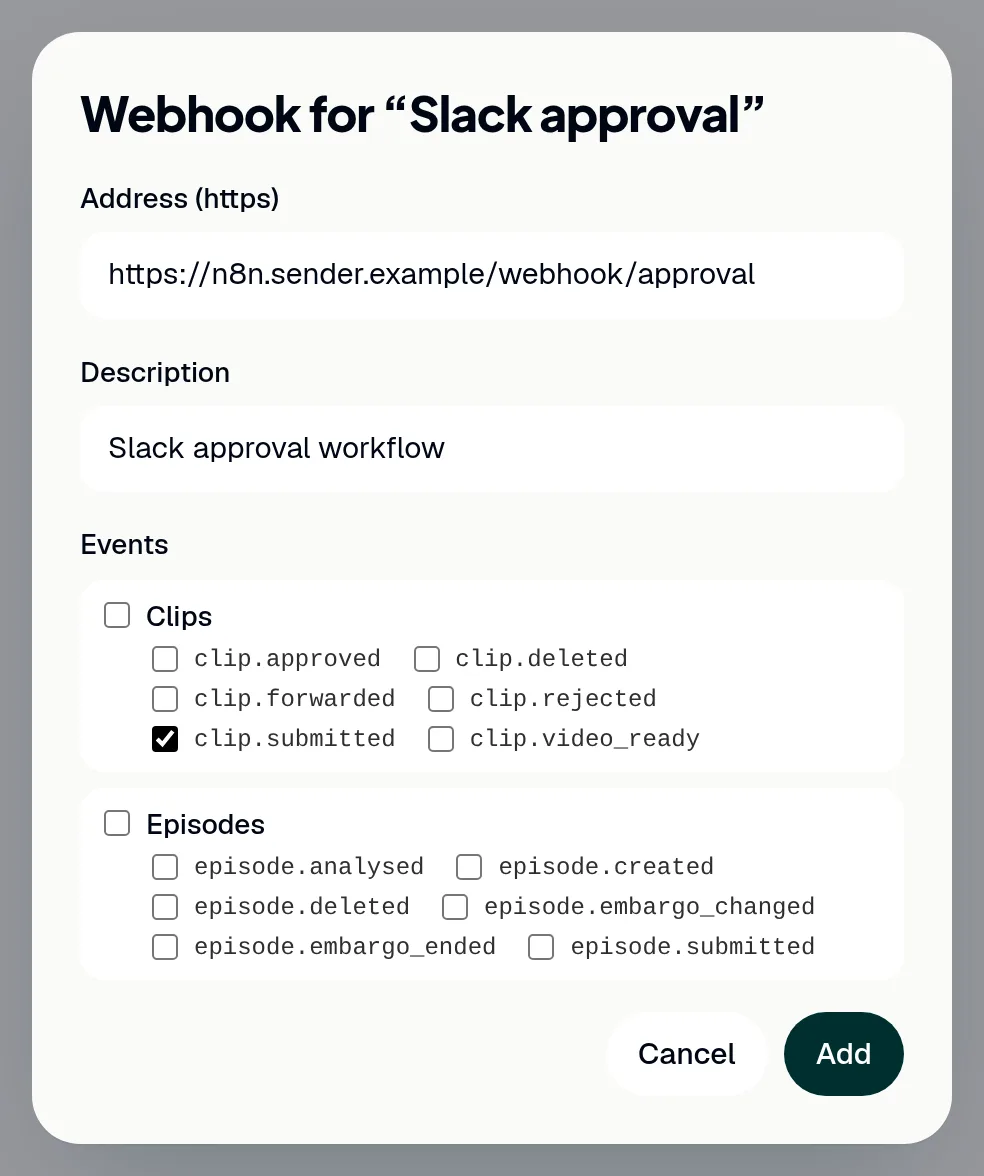
A webhook tells your workflow when something happens, for example clip.submitted when a clip waits for approval, or episode.embargo_ended when an embargo ends. Events name the clip or episode only by its ID; the workflow fetches the details with the key.
- On the Automations page, under Connections, click Webhooks at the connection.
- Click Add webhook.
- Under Address (https), paste the address from your tool. In n8n this is the Production URL; ShowBits warns you about the test URL.
- Enter a Description if you like, and choose the Events.
- Click Add.
- Click Copy to copy the secret, then Done. Your workflow checks the signature in the
ShowBits-Signatureheader with it; ShowBits shows the secret only once.
If your address does not answer with a 2xx status, ShowBits tries again for over a day. A workspace has at most 10 webhooks. Webhooks belong to their connection and end with it.
Approve from Slack or Microsoft Teams
A workflow can post each clip that waits for approval in Slack or Microsoft Teams, with buttons to approve it or send it back. On a click, the workflow tells ShowBits the step it showed and the name of whoever clicked. ShowBits then approves exactly this step or sends the clip back, in the name of the person who answers for the connection. With two approval steps, each step needs its own click; the event clip.forwarded tells the workflow that the second step is waiting. The audit log under Settings → Security shows the connection and the reported name, for example “clicked by Kim (as the automation reports)”.
If the clip has moved on in the meantime, after a second click or an approval in ShowBits, nothing changes. Links to the video and pictures last an hour, so fetch them when the workflow posts its message. ShowBits cannot check the reported name: the person who answers for the connection stands behind it.
Take over or revoke a connection
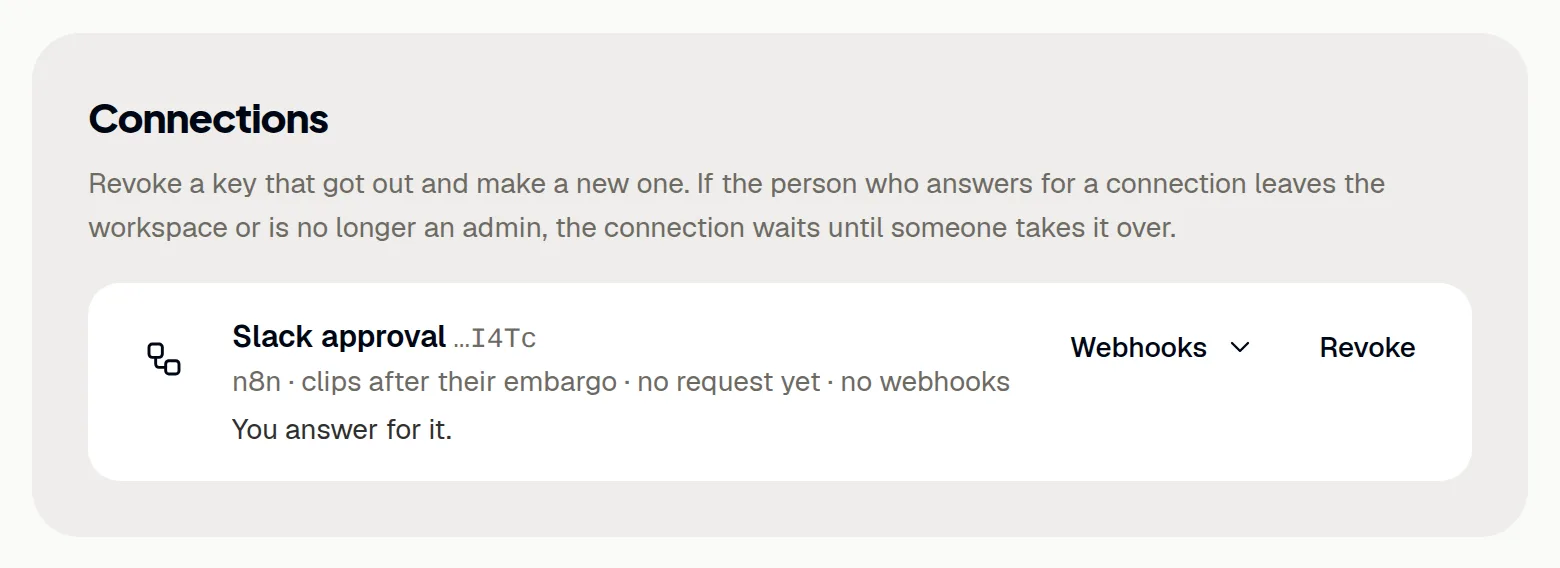
If the person who answers for a connection leaves the workspace or is no longer an admin, the connection waits: ShowBits refuses its requests until someone takes it over.
- On the Automations page, click Take over at the connection. You now answer for it.
- To end a connection, click Revoke and confirm with Revoke.
A revoked key stops working at once, the connection's webhooks go with it, and workflows that use it stop. If a key got out, revoke the connection and create a new one.
Questions
Do I need Enterprise or the REST API?
No. Connections work on every plan and do not use the REST API, which comes with Enterprise and OnPremise. Your plan sets how many connections a workspace can have; the Automations page shows the number.
ShowBits answers with 401. What is wrong?
The header is missing or wrong, or the key is unknown or revoked. The value must be Bearer, a space and the connection's key; an API token does not work here. ShowBits says in its answer what is missing.
How many requests may a workflow send?
300 requests a minute per connection, failed ones included. Above that, ShowBits answers with 429 and a Retry-After header.
How do I check a webhook's signature?
Each event carries ShowBits-Signature: t=…,v1=…, an HMAC-SHA256 of the time, a dot and the raw body, made with the webhook's secret. In n8n, compute it with the Crypto node and drop repeats by the event's id with Remove Duplicates.
Where can I find every route and event?
In the setup guide for n8n, Zapier and Make. In ShowBits, Routes and setup on the Automations page opens it too.