
Scheduling and publishing
Approved clips and quote cards go out at the time you plan. On connected channels ShowBits posts them by itself; for the other channels, video, cover and text are ready at that time, and you post by hand.
Schedule a clip
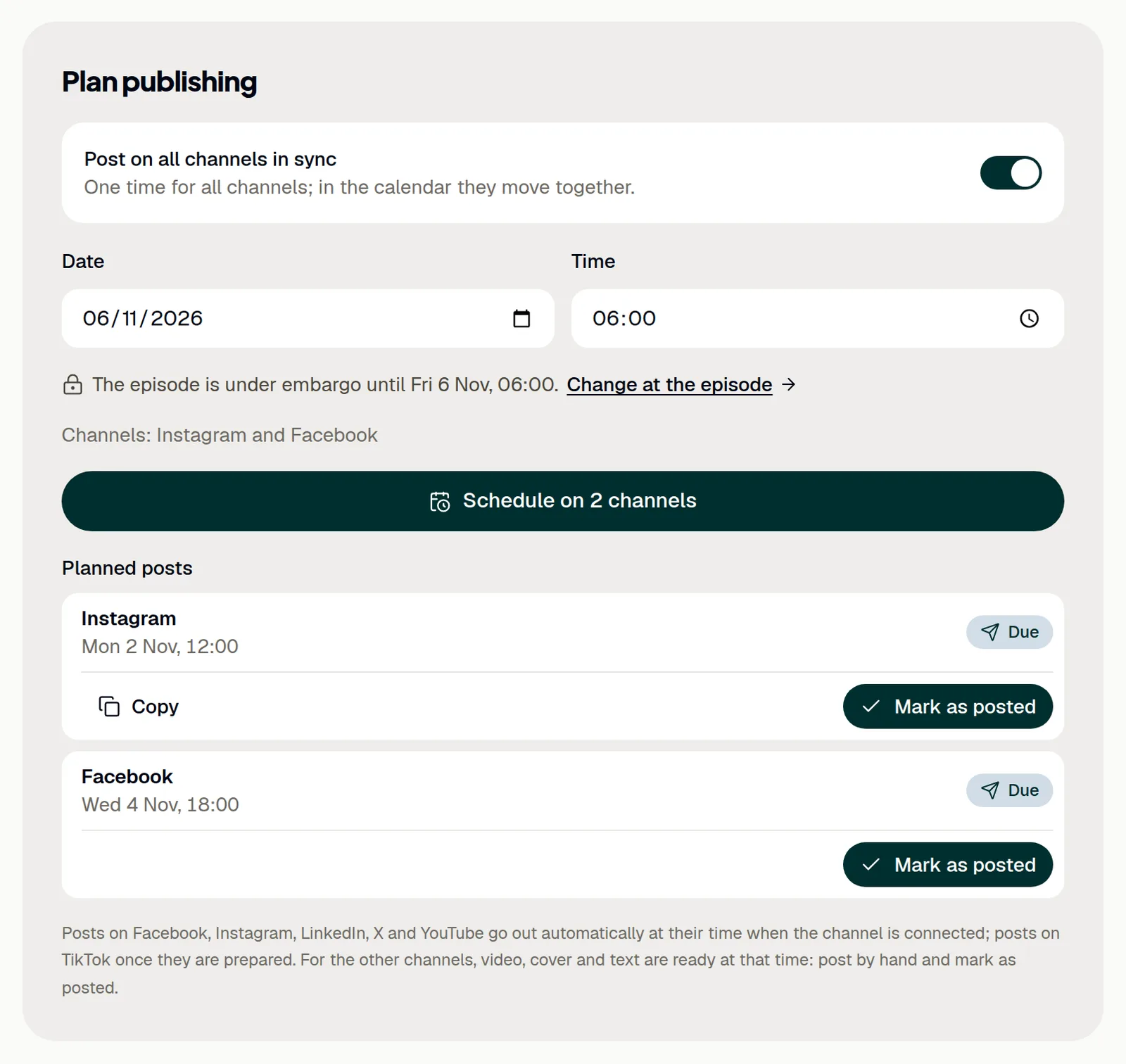
You plan a clip in the clip editor under Plan publishing. It posts on the channels that are switched on in the editor.
- Open the approved clip, for example under Approvals → Approved with Plan.
- Check the channels: the dot in front of each channel tab switches it on or off.
- Under Plan publishing, leave Post on all channels in sync on to give all channels one date and time, or switch it off to give each channel its own.
- Choose the Date and Time.
- Click Schedule. The button names the number of channels or posts.
A clip can be scheduled once it is approved, and not before the episode's embargo ends; admins and duty editors change the embargo with Change at the episode. All times are German time (Europe/Berlin). Posts scheduled in sync move together in the calendar.
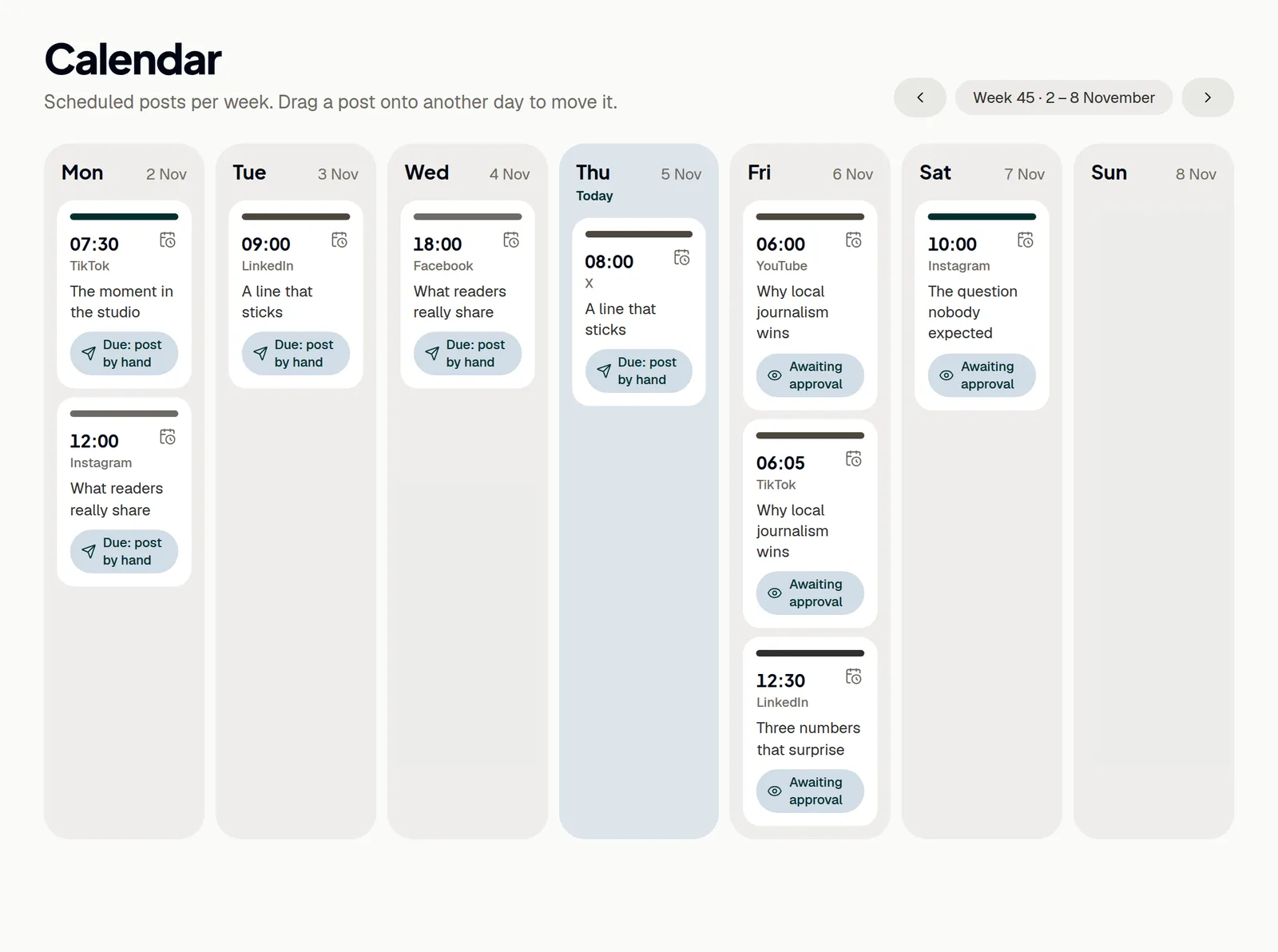
The weekly calendar
Calendar shows the planned posts of one week; the arrows at the top switch to the previous or next week. A click on a post opens its clip. Each post shows where it stands: Awaiting approval, Due: post by hand, Due: prepare for TikTok, Goes out automatically, Being sent, Not sent or Posted.
- To move a post, drag it onto another day.
- Choose the time in the dialog.
- Click Move.
Without dragging, the small calendar icon on a post opens the same dialog, Change time. Published posts and posts being sent stay where they are. To take a post off the plan, open the clip and click Take off the plan next to the post under Planned posts.
Post by hand
On a channel without a connection, ShowBits gets everything ready for the planned time. The post then shows Due: post by hand.
- Open the clip and go to Planned posts.
- Download Video and Cover; for a quote card, Picture 4:5.
- Click Copy to copy the channel's text with its hashtags.
- Post on the platform.
- Click Mark as posted.
The audit log records who posted by hand.
Automatic posting
On connected channels, a post goes out by itself at its time, with the channel's text and hashtags from the editor. On Instagram, clips go out as Reels and quote cards as pictures in 4:5. On Facebook, clips go out as Reels or videos on the connected page, quote cards as pictures. On X, clips go out as videos and quote cards as pictures, with up to two hashtags. X counts at most 280 characters, an emoji counts twice, and a longer text is shortened at a word boundary; links and @-mentions do not belong in the X text, and the editor points them out.
- If a post shows Not sent, open the clip and read the reason next to the post under Planned posts.
- Fix what the reason names.
- Click Send again.
Report a problem next to it sends the case to ShowBits support. How to connect each platform: YouTube, Instagram, Facebook, TikTok, LinkedIn and X.
Post on TikTok
TikTok wants a person to prepare every post. Once it is prepared, ShowBits sends it at the planned time; it can take a few minutes until the video shows on the profile.
- Have an admin connect TikTok under Integrations. A workspace has one TikTok account.
- Schedule the clip on TikTok.
- Under Planned posts, click Prepare for TikTok at the TikTok post.
- Check the account under Posting as, the Preview and the Text (up to 2,200 characters).
- Choose who can watch the video under Who can watch this video?; there is no preset.
- Allow Comments, Duet or Stitch if you want them. Options switched off in the account are greyed out.
- If the video promotes something, switch on Disclose commercial content and choose Your brand, Branded content or both.
- Click Agree and post.
Agree and post confirms TikTok's Music Usage Confirmation, with branded content also its Branded Content Policy. TikTok labels your own brand as “Promotional content” and branded content as “Paid partnership”; branded content cannot be Only me. Afterwards the post shows Ready, Being sent and, once TikTok has processed it, a link to the post on TikTok. Change edits a prepared post.
LinkedIn posts and comments
On LinkedIn, ShowBits posts on the connected personal profile: clips as videos, quote cards as pictures, with the LinkedIn text. Under the post in Planned posts you see which company pages it tags (only those the text names exactly) and which link goes into the first comment. The next morning between 9 and 11 o'clock, a second comment follows with a sentence about the episode and the link. After posting, the plan shows whether the comments went out.
- Open the episode.
- Enter the address under Link to this episode. It has to start with
https://. - Click Save.
The comments carry this link. Without one, they use the show's link from the brand kit, Where to listen; without any link there are no comments. Which comments go out and which company pages to tag is set in the brand kit, see Brand kits.
YouTube posts
On YouTube, the clip goes to the connected channel at its time. The first line of the YouTube text becomes the title, the rest the description. Clips in 9:16, 4:5 or 1:1 up to three minutes appear as Shorts, other clips as videos. Quote cards do not go to YouTube. Visibility and the statements YouTube asks for come from the show's brand kit; you can change them for a single post.
- Under Planned posts, switch on Customise for this post at the YouTube post.
- Change Visibility, Made for kids or Altered or synthetic content.
Each change is saved at once. Switching Customise for this post off brings back the brand kit's settings.
Questions
Why does a post show “Due: post by hand” on a connected channel?
On Facebook, Instagram, LinkedIn, X and YouTube, a post that could not go out within six hours of its time, for example because the clip was approved later, does not go out by itself any more. Post it by hand, or move it to a new time in the calendar; on a connected channel it then goes out by itself.
Why can't I schedule a clip?
Scheduling needs an approved clip, at least one channel switched on in the editor, and a time in the future after the episode's embargo. The panel names what is missing.
Which channels take quote cards?
Instagram, Facebook, LinkedIn and X. You schedule a quote card the same way as a clip; for posting by hand, download Picture 4:5.