
Watch folders
Watch a folder, and every video or audio file that arrives in it becomes an episode of the show you choose, once its upload has finished. Watched folders work in Google Drive, OneDrive and SharePoint, Box and Dropbox, and on Enterprise and OnPremise in the S3-compatible storage of your MAM or DAM.
- Who sets it up
- Admins of the workspace
- Who sees the overview
- Everyone in the workspace
- Plans
- Every plan; MAM/DAM storage on Enterprise and OnPremise
- Limit
- Up to 10 watched folders per workspace
How it works
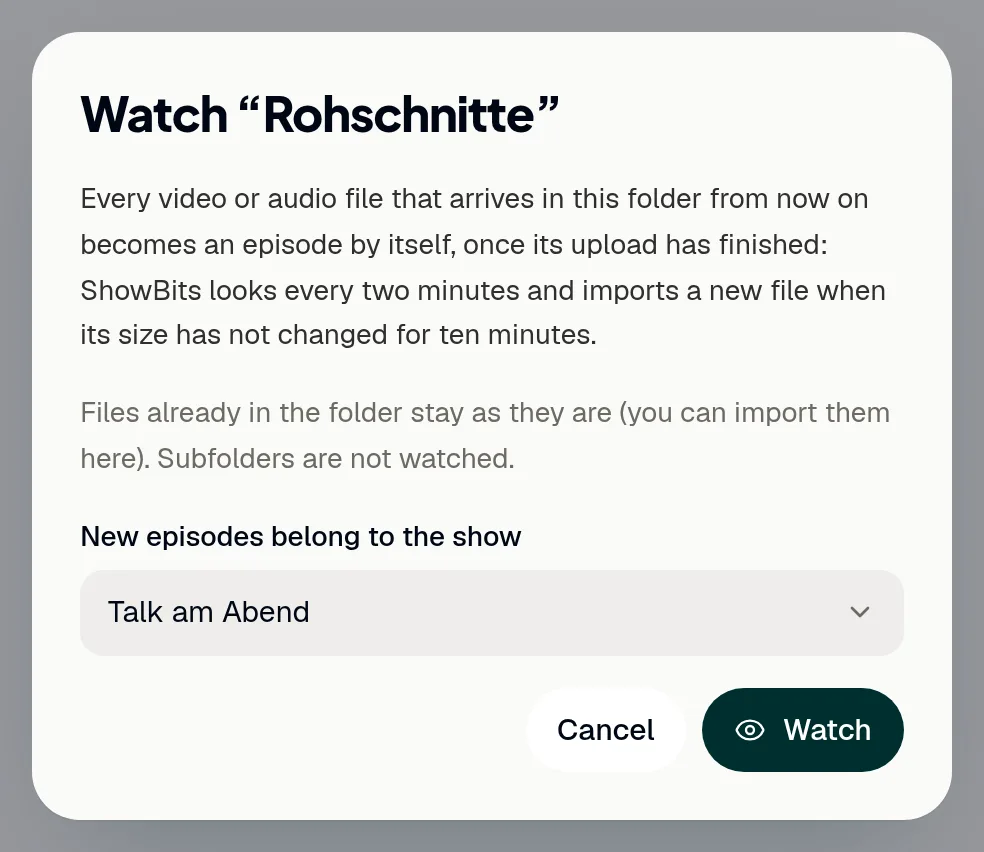
ShowBits looks into each watched folder every two minutes. A new file waits until its size has not changed for ten minutes, so no file is processed while it is still uploading or growing. Then it becomes an episode of the chosen show, as if you had imported it by hand: the file is not copied, and the episode gets an embargo by its show's rule or the default embargo.
Only files that arrive after you start watching become episodes. Files that are already in the folder stay as they are; you can import them by hand. Subfolders are not watched, and a file that changes after its import is not imported again.
Watch a folder
Connect the storage first: Google Drive, OneDrive and SharePoint, Box, Dropbox or, on Enterprise and OnPremise, the storage of your MAM or DAM. Then an admin sets up the folder.
- Open Integrations.
- On the Watch Folder card under Developers & systems, click the storage next to Choose a folder in.
- Open the folder you want to watch.
- Click Watch folder.
- If the workspace has several shows, choose one under New episodes belong to the show.
- Click Watch.
The folder now shows Watched. You can watch a folder, not the top level of a storage. It works best with one folder per show that only receives new episodes.
The Watch Folder card
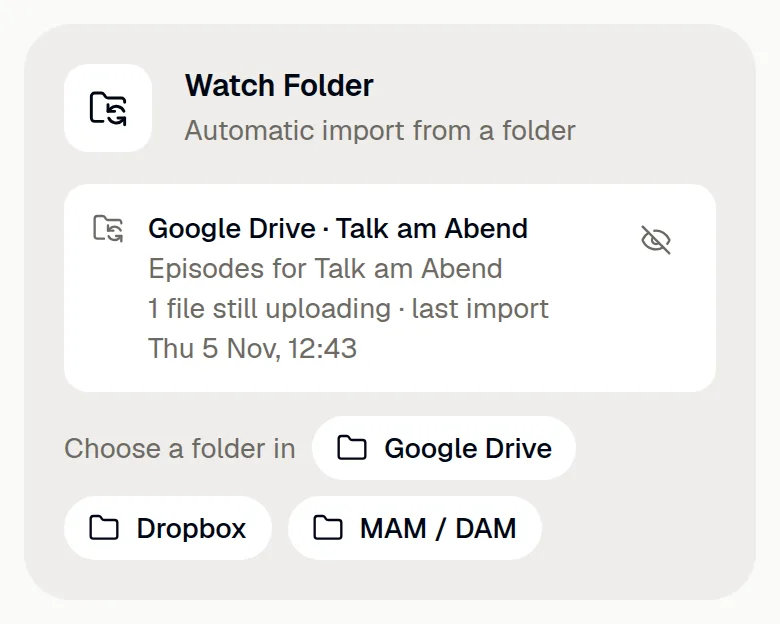
The Watch Folder card under Integrations → Developers & systems lists the watched folders of the workspace, for everyone in it. Each line shows the storage and the folder, the show its episodes belong to, and what is going on: files still uploading, files waiting for minutes in the quota, and the last import. Click the folder's name to open it. On the Overview, Watch Folder next to or import from leads to this card.
If something is wrong, the line says so: the connection needs to be renewed, the folder was not found or is no longer shared, there are too many files in the folder, or the storage did not answer, in which case ShowBits keeps trying.
Stop watching
Admins can stop watching a folder at any time.
- Open Integrations.
- On the Watch Folder card, click the crossed-out eye next to the folder (Stop watching).
On the import page, Stop watching in the open folder does the same. Episodes that were already imported stay. Disconnecting the storage, or connecting it to another account, also ends its watched folders.
See what was imported
The audit log records who started or stopped watching a folder. Every import from a watched folder appears there as done by System, with the folder's name. Open it under Settings → Security → Audit log.
Questions
A file in the folder did not become an episode.
Check that it arrived after watching started; files that were already there you import by hand. It has to be a video or audio file in the folder itself, not in a subfolder. A file that is still uploading or growing waits until its size has not changed for ten minutes.
What happens when the month's quota is used up?
New files wait. The card shows them as waiting for minutes in the quota, and ShowBits imports them as soon as there are minutes again, in the new month or with a credit pack.
The card says there are too many files in the folder.
ShowBits watches only folders it can list completely at each look. Choose a subfolder that only receives new episodes.
How many folders can a workspace watch?
Up to 10. To watch another folder, stop watching one of the others first.