
Google Drive
Connect Google Drive and import your recordings as episodes straight from it. ShowBits reads each file where it is and does not copy it. An admin connects Drive once; then everyone in the workspace can import.
- Who connects
- Admins of the workspace
- Who imports
- Everyone in the workspace
- Plans
- Every plan
- What ShowBits may do
- Read only: list folders and video and audio files, and read the files you import. ShowBits never changes, deletes or shares anything in your Drive.
Connect Google Drive
- Open Integrations.
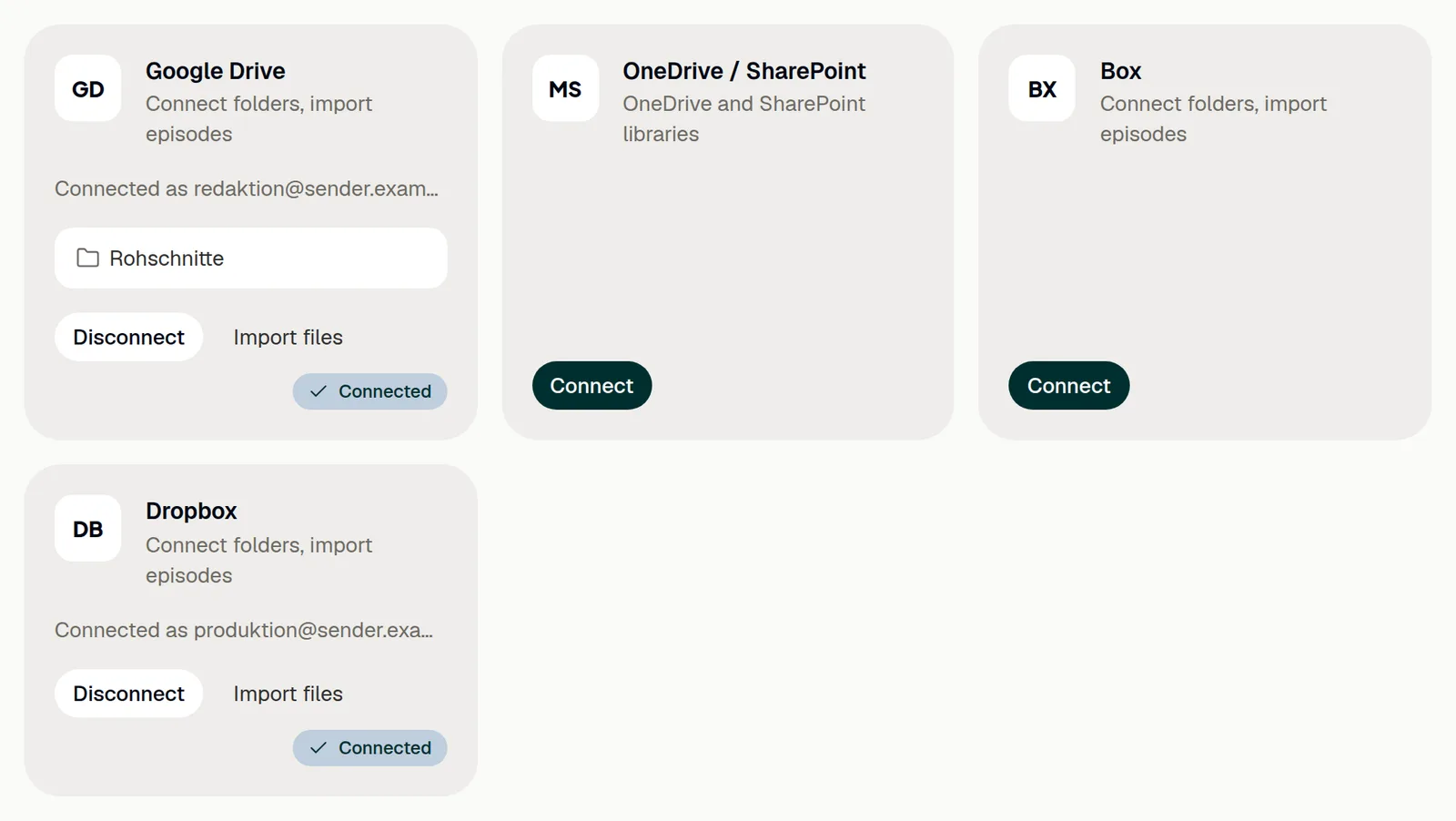
- Under File storage, click Connect on the Google Drive card.
- If Google asks, choose the Google account whose Drive you want to use.
- Google shows what ShowBits asks for: to see and download your Google Drive files. Allow it.
- Back in ShowBits, the card shows Connected and the account, for example “Connected as newsroom@example.com”.
The connection belongs to this workspace. Each workspace connects its own storage.
Import an episode
Once Drive is connected, everyone in the workspace can import.
- On the Overview, click Google Drive next to or import from. Or click Import files on the Google Drive card under Integrations.
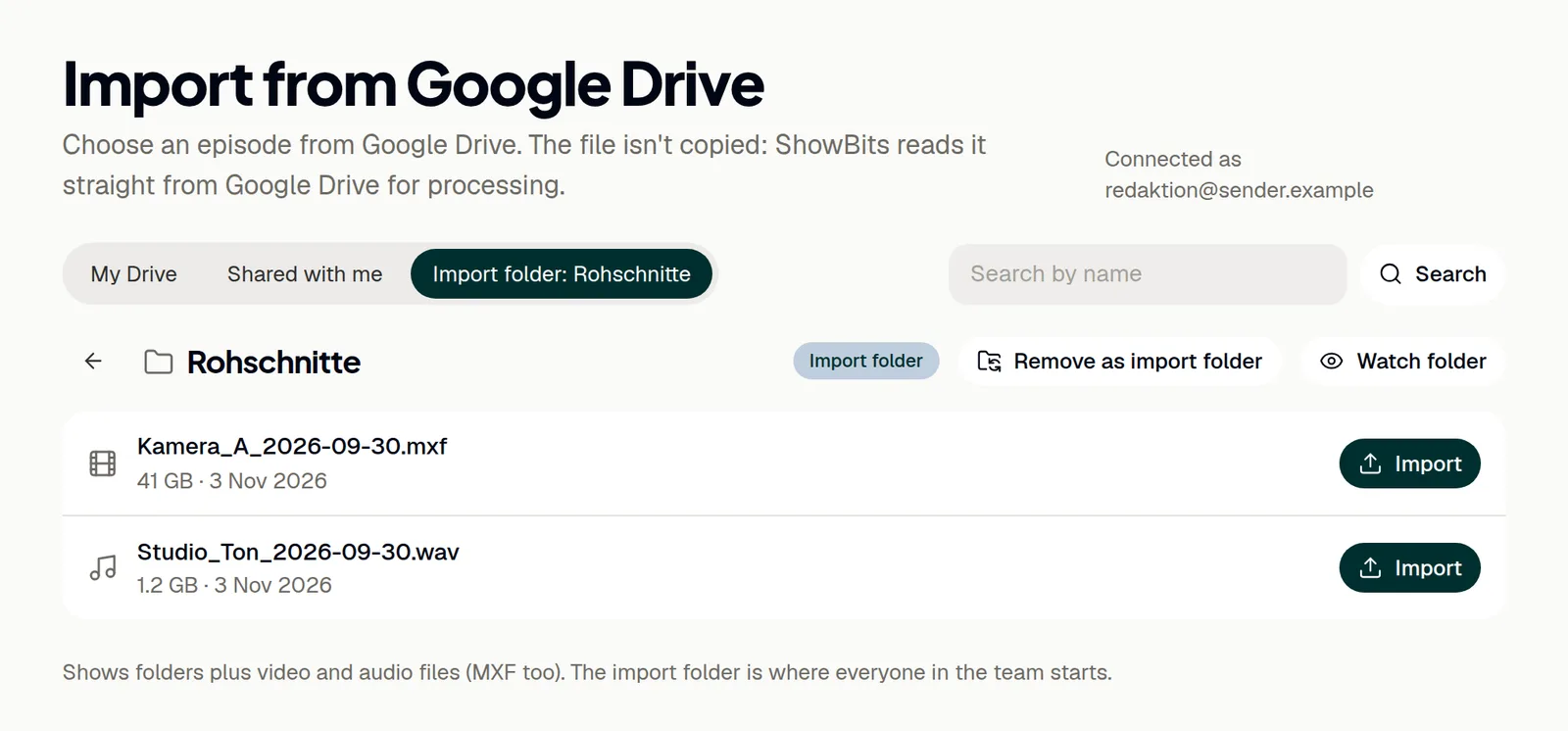
- Choose My Drive or Shared with me. If an import folder is set, the page opens there.
- Open folders until you see the recording. To find it by name, type the name into the search field and click Search.
- Click Import next to the file.
- ShowBits creates the episode and starts processing it. You find it on the Overview under Processing.
The list shows folders and video and audio files, MXF too. Files that are already episodes are marked Imported; each file can be imported once per workspace. Search looks for the name in all of your Drive, not only in the open folder; in Shared with me it stays in that view.
Set the import folder
The import folder is where everyone in the team starts. Admins set it.
- Open the folder on the import page.
- Click Make import folder.
The folder then has its own view, Import folder with the folder's name, and the Google Drive card under Integrations shows it. Remove as import folder clears it. If an admin connects another Google account, the import folder is cleared.
Watch a folder
Admins can watch a folder in Drive: every new video or audio file in it becomes an episode by itself, once its upload has finished. Open the folder on the import page and click Watch folder. How it works: Watch folders.
Reconnect or disconnect
Admins renew or end the connection on the Google Drive card under Integrations. Reconnect renews it, for example when ShowBits says the connection needs renewing, or switches to another Google account. Another account clears the import folder and ends the watched folders.
- Open Integrations.
- Click Disconnect on the Google Drive card. ShowBits deletes its stored access right away, and the watched folders in Drive end.
- To also remove ShowBits from your Google account, open the permissions of your Google Account, select ShowBits and remove its access.
Imported episodes stay. ShowBits reads their files from Drive whenever it cuts clips, so cutting them again later needs the connection. Removing ShowBits in your Google Account ends all of ShowBits' access through that account, including a YouTube connection or a Drive connection in another workspace made with it.
Questions
Does ShowBits copy my files?
No. ShowBits reads the file straight from Drive, also later whenever clips of the episode are cut again. So leave the file in Drive: if it is deleted or no longer shared, no more clips can be cut from it. Deleting the episode in ShowBits leaves the file in Drive as it is.
ShowBits says the required permission was not granted.
Access to Google Drive was not allowed on Google's page. An admin clicks Connect again and allows it.
The import page says the connection needs renewing.
The connection has expired, was revoked or lacks rights. An admin clicks Reconnect on the Google Drive card under Integrations.
Google Drive stopped working after YouTube was disconnected.
Disconnecting YouTube revokes ShowBits' access at Google for the whole Google account. If Drive was connected with the same account, an admin connects Google Drive again.
Our organisation uses Google Workspace, and Google blocks ShowBits.
In Google Workspace, your admin decides which apps may access Google Drive. Ask them to allow ShowBits. Google explains how in its help for admins.