
Webhooks
A webhook tells your own systems what happens in a workspace: approvals, new episodes, finished videos, published posts and more. ShowBits sends each event signed to your address. Webhooks come with the Enterprise and OnPremise plans; on every plan, connections for n8n, Zapier and Make have webhooks of their own.
- Who sets it up
- Workspace admins
- Plans
- Enterprise and OnPremise
- What ShowBits sends
- Signed events that name objects by their id, without names, titles or texts
Add a webhook
Admins of the workspace add webhooks. Your system needs an address that accepts POST requests over https and is reachable from the internet.
- Open Settings → API.
- Under Webhooks, click Add webhook.
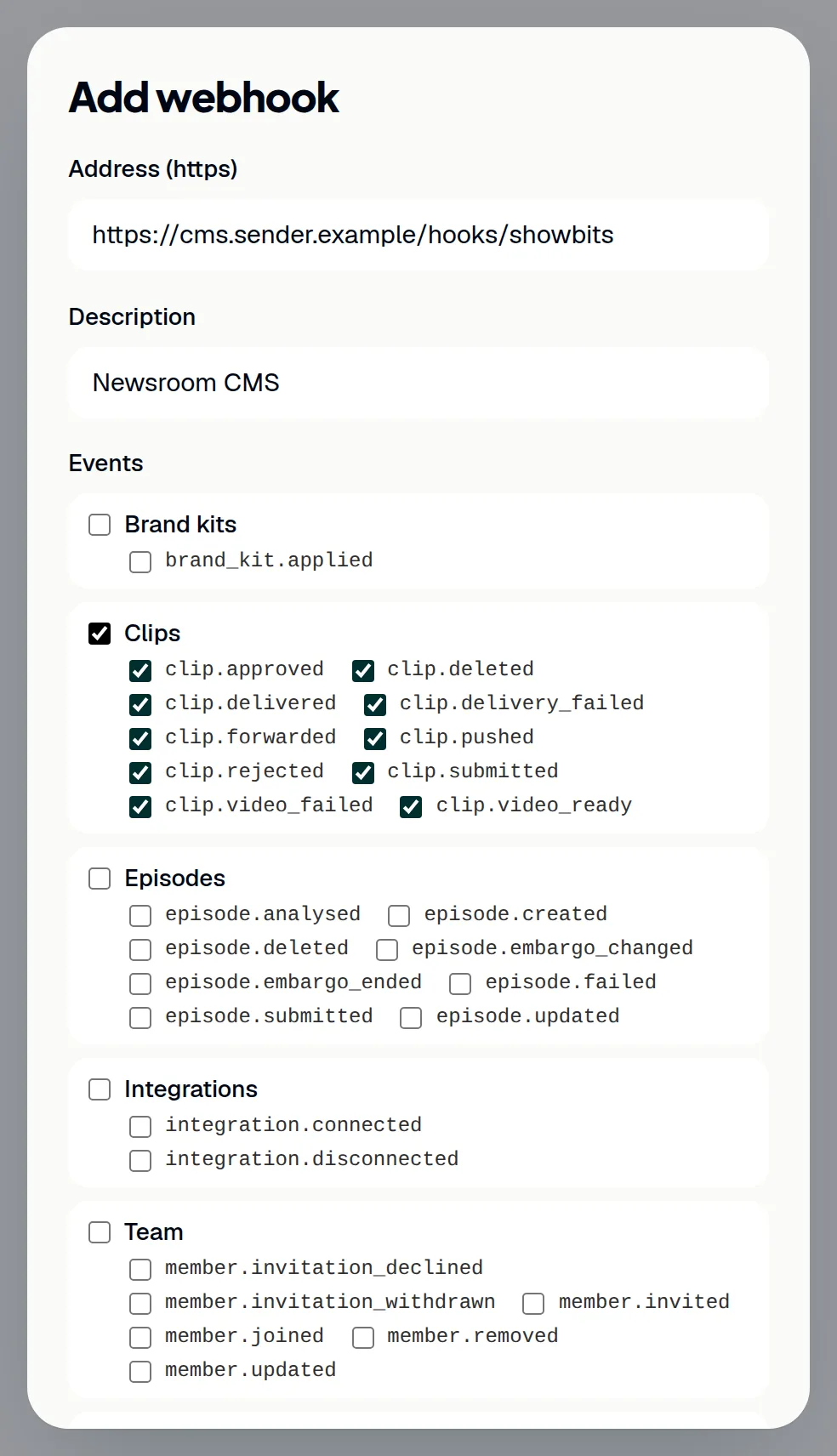
- Enter the Address (https) of your system. It must start with
https://, contain no user name or password and be reachable from the internet. - If you like, enter a Description, for example the name of the system.
- Under Events, tick what your system needs. The box of a group, such as Clips, ticks all its events.
- Click Add.
- Click Copy and store the secret in your system. ShowBits shows it only this once.
- Click Done.
A workspace has at most 10 webhooks, counting those of n8n, Zapier and Make connections. For n8n, use the webhook node's Production URL; the dialog warns you when you enter its test URL.
Events and their content
The events come in the groups Clips, Episodes, Posts, Quote cards, Team, Integrations, Brand kits and Workspace. For example: clip.approved when a clip is released, clip.forwarded when it moves on to the next approval step, clip.video_ready when its video is finished, episode.analysed, episode.embargo_ended, post.published, post.failed, and clip.delivered for a delivery into your MAM or DAM.
Each event is a POST with a JSON body: id (the event's id), type, occurredAt, workspace (id and slug), object (type and id of the episode, clip or post), via (app, api, automation or system) and data with a few harmless fields such as channel or time. Names, titles and texts are never part of it; your system fetches the details through the REST API.
Check the signature
Each event carries the headers ShowBits-Event (the event's type), ShowBits-Delivery (the delivery's id) and ShowBits-Signature: t=…,v1=…. Check the signature before your system acts on an event.
- Read the request body as raw text, before your system parses the JSON.
- From
ShowBits-Signature, taket, the time in Unix seconds, and everyv1value. - Compute an HMAC-SHA256 over
t, a dot and the raw body, with the whole secret as the key, includingwhsec_, and write the result as hex. - Accept the event only if the result matches one of the
v1values; compare in constant time. - Drop the event if
tis more than five minutes old.
For a day after a new secret, the header carries a second v1, signed with the previous secret. Sample code is in the API documentation.
Test, pause and check deliveries
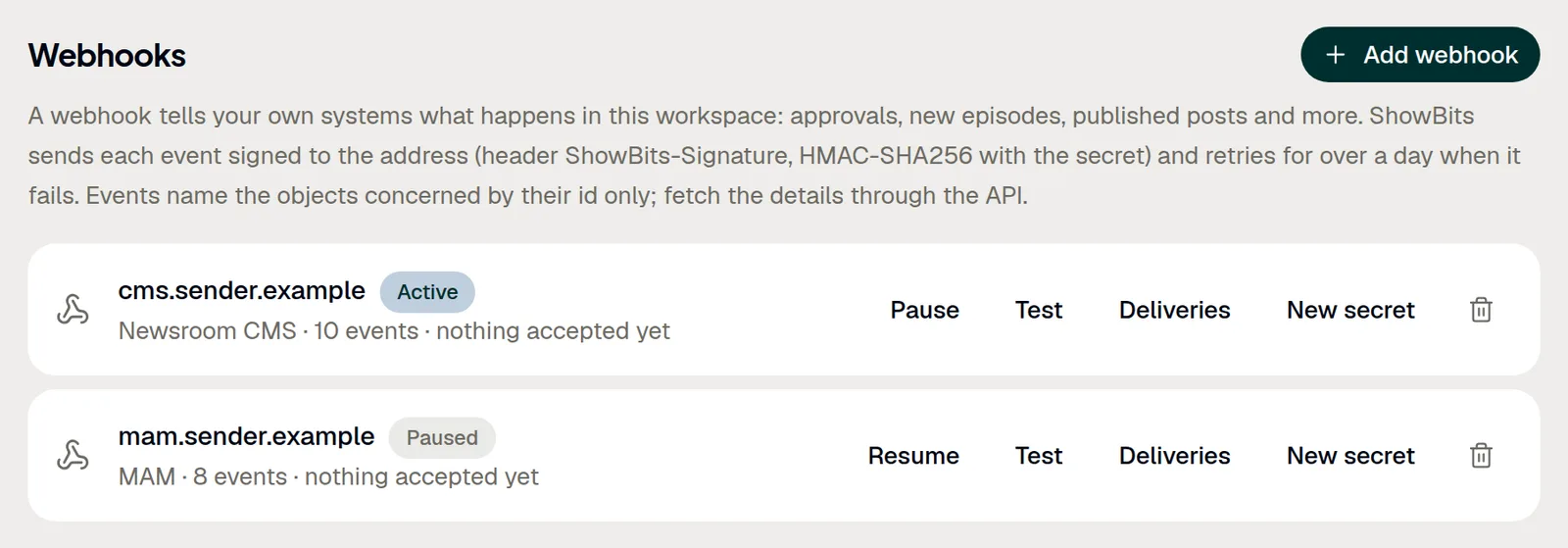
Each webhook shows its host, its state (Active, Paused or Paused after failures), the description, the number of events and when the address last accepted an event.
- Click Test to send a test event (
webhook.test). It also goes to a paused webhook. - Click Deliveries to see the latest 20 events with their result: accepted (with the status code), being retried (with the number of attempts and the error) or given up (with the error).
- Click Pause to stop sending events, and Resume to start again.
Events that happen while a webhook is paused are not sent later.
Create a new secret
Create a new secret if the old one may have become known, or to change it from time to time. The previous secret keeps signing for a day as well, so you can switch your system over without a gap.
- Click New secret at the webhook.
- Confirm with New secret.
- Click Copy and store the new secret in your system.
- Click Done.
Delete a webhook
Deleting a webhook ends it for good: no more events go there, and open deliveries are dropped.
- Click the bin icon (Delete) at the webhook.
- Confirm with Delete.
Retries, automatic pause and repeated events
Your address must answer with a status from 200 to 299 within 10 seconds; ShowBits does not follow redirects. Otherwise ShowBits tries again after 1 minute, 5 minutes, 30 minutes, 2 hours, 6 hours and 24 hours, then gives up that event. If the address accepts nothing for three days, ShowBits pauses the webhook (Paused after failures) and emails the admins of the workspace. Fix the problem at the address, then click Resume.
An event can arrive more than once: after a retry, or at two webhooks with the same address. Recognise repeats by id: it is the same for every attempt and every webhook.
Questions
Can the address be in our internal network?
No. ShowBits only sends to https addresses that are reachable from the internet, without user name and password.
Why does an event not contain the clip's title?
Events name objects by their id only, so no names, titles or texts leave ShowBits this way. With a token, your system fetches the details through the REST API.
How long are deliveries kept?
30 days. Deliveries shows the latest 20 of a webhook.
Can our system manage its webhooks itself?
Yes, through the REST API with a token that has the permissions webhooks:read and webhooks:write. The token's person must be an admin of the workspace.
We are on Creator or Business. Can we receive events?
Webhooks under Settings → API come with Enterprise and OnPremise. On every plan, connections for n8n, Zapier and Make have webhooks of their own, with the same signature: see n8n, Zapier and Make.