
MAM and DAM through S3-compatible storage
Connect the S3-compatible storage of your MAM or DAM to a workspace. ShowBits then imports episodes from its folders, watches folders for new files and delivers released clips with all their metadata into a delivery folder. This is part of the Enterprise and OnPremise plans.
- Who sets it up
- Workspace admins
- Plans
- Enterprise and OnPremise; on other plans, admins can request it
- What ShowBits may do
- Read files in the bucket and write released clips into the delivery folder; it deletes nothing there
Connect the storage
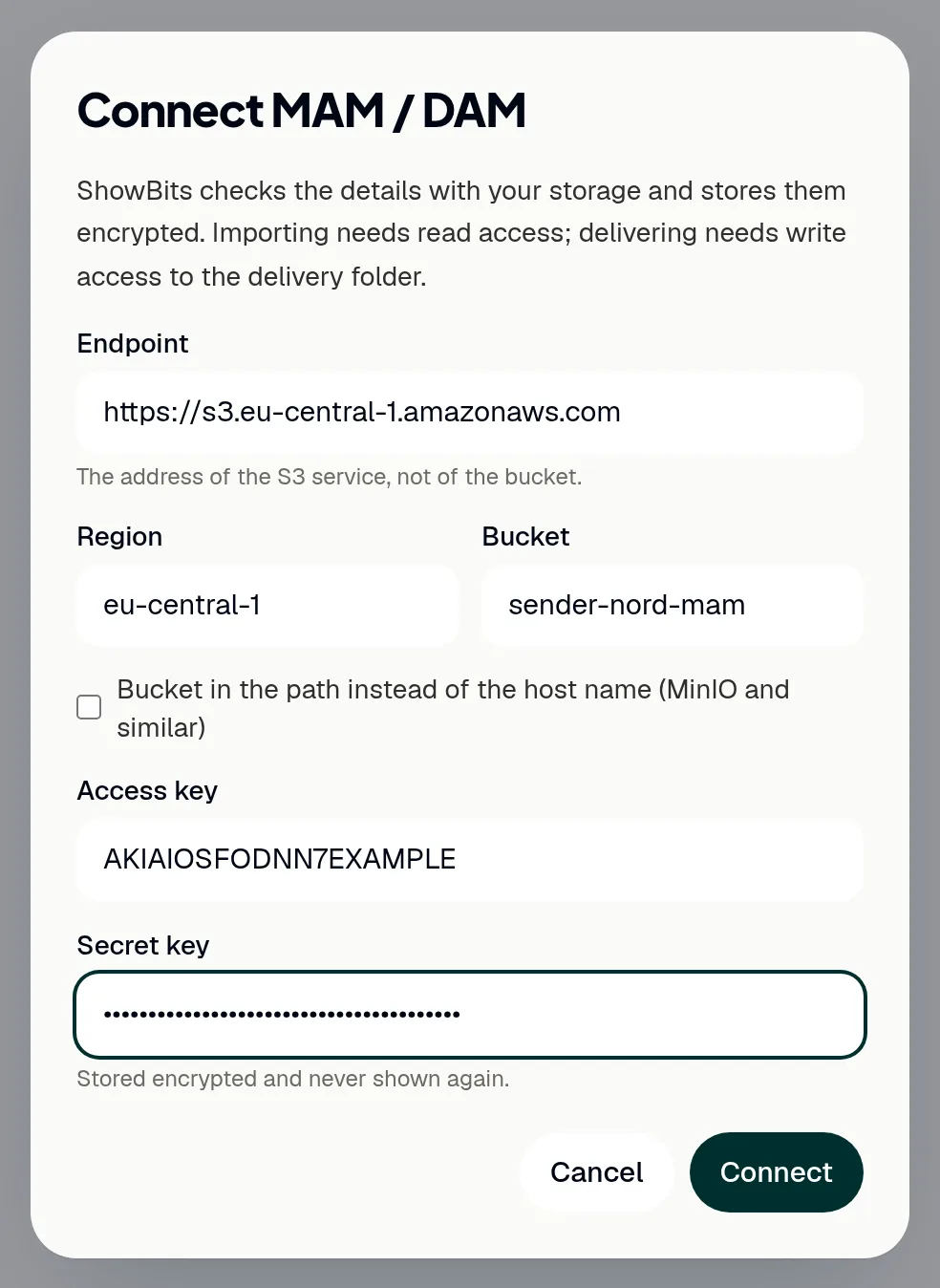
Only admins of the workspace connect the storage. You need its endpoint, the region, the bucket and an access key with its secret key (see the next section).
- Open Integrations.
- Under Developers & systems, click Connect on the MAM / DAM card.
- Under Endpoint, enter the address of the S3 service, not that of the bucket, for example
https://s3.eu-central-1.amazonaws.com. - Enter the Region and the Bucket.
- If your storage expects the bucket in the path of its addresses, tick Bucket in the path instead of the host name (MinIO and similar).
- Enter the Access key and the Secret key.
- Click Connect. ShowBits checks the details with your storage; the card then shows the bucket and host it is connected to.
ShowBits stores the details encrypted and never shows the secret key again. It only connects to https addresses that are reachable from the internet.
The access key and its permissions
Give ShowBits an access key of its own, ideally for a user that may only use this bucket. To browse, import and watch folders, the key needs to list the bucket and read its files; to deliver clips, it also needs to write files in the delivery folder. In the terms of AWS S3, which many S3-compatible storages share, these are s3:ListBucket and s3:GetObject, plus s3:PutObject for the delivery folder only.
- In your storage provider's console, create a user or service account for ShowBits.
- Allow it to list the bucket and to read its files.
- Allow it to write files in the folder that is to receive the clips.
- Create an access key for it, and copy the access key and its secret key.
Each storage names these rights in its own way; its documentation explains how to limit a key to one bucket or folder. ShowBits does not delete files in your storage.
Import episodes and watch folders
Once connected, the storage works like Google Drive in ShowBits: folders are the prefixes of the object keys, and ShowBits reads a file where it is, without copying it. On the Overview, MAM / DAM also appears among the import sources.
- On the MAM / DAM card, click Import files. Admins see Files and delivery folder until a delivery folder is chosen.
- Open the folder with the episode. Bucket takes you back to the top of the bucket.
- Click Import next to the video or audio file.
Admins can also click Make import folder in a folder, so that the team starts there, or Watch folder, so that new files become episodes by themselves: see Watch folder.
Choose the delivery folder
Admins choose the folder into which ShowBits delivers released clips.
- On the MAM / DAM card, click Files and delivery folder.
- Open the folder that is to receive the clips.
- Click Deliver clips here. The folder is now marked Delivery folder.
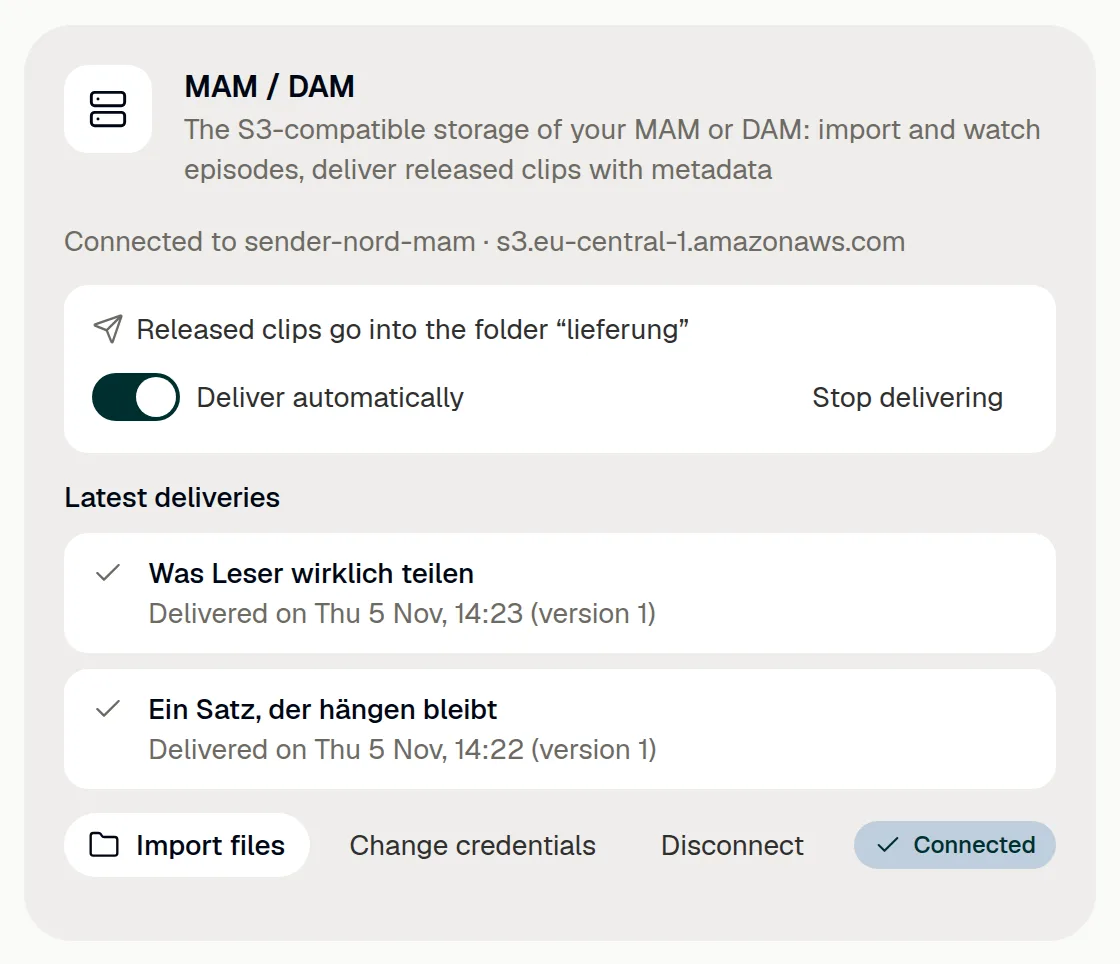
- To have every released clip delivered by itself, switch on Deliver automatically on the MAM / DAM card.
With automatic delivery, a clip goes there as soon as its last approval step releases it; without it, clips go there by hand, at the clip. To use another folder, open it through Import files and click Deliver clips here there; Stop delivering ends the deliveries.
Deliver a clip by hand or again
Once a delivery folder is chosen, every released clip (approved, scheduled or published) shows a MAM / DAM box below the editor, with whether and when it was delivered. Every member of the workspace can deliver the clip there by hand.
- Open the clip.
- In the MAM / DAM box, click Deliver to MAM, or Deliver again if the clip was delivered before.
Under Integrations, the card lists the Latest deliveries, with Deliver again for one that failed. When a released clip gets a new video or new pictures, for example after Apply to all assets, ShowBits delivers it again as a new version wherever it went before. A clip whose video is being rendered waits for it.

What a delivery contains
Each clip gets a folder of its own for each version in the delivery folder: one folder per episode, in it one per clip, both named by their id, and in it one per version (v1, v2 …). So a new version never overwrites what your MAM may be taking. A clip's folder holds video.mp4, subtitles.vtt if the video has subtitles, and the thumbnails thumbnail-16x9.jpg and cover-9x16.jpg; a quote card's folder holds card-4x5.jpg, card-9x16.jpg and card-1x1.jpg. ShowBits writes clip.json last: once it is there, the folder is complete.
clip.json names the workspace, the show, the episode (title, language, embargo and source file; for an episode from the same bucket, its object key) and the clip (kind, title, format, in and out points in seconds of the episode's file, duration, text, subtitle language, headline, hashtags, quote, texts per channel and time of approval), plus the list of files with size and type. Playout systems receive the clips through your MAM.
Change credentials or disconnect
To use another access key, click Change credentials on the card and enter all details again. Another bucket or host counts as a different storage: the import folder, watched folders and the delivery folder end.
- On the MAM / DAM card, click Disconnect.
- Confirm with Disconnect.
ShowBits deletes the credentials. Watched folders, the import folder and the delivery folder end; what has been delivered stays in your storage. You can also deactivate the access key in your storage at any time.
Questions
We are on Creator or Business. Can we connect our MAM?
Connecting MAM and DAM systems is part of the Enterprise and OnPremise plans. On other plans, admins click Request on the MAM / DAM card under Integrations; the card then shows Requested.
Does a clip go into the MAM before the embargo ends?
Yes. Delivering into your own MAM is not publishing: ShowBits delivers released clips right away and names the embargo in clip.json (embargoUntil). Posts on social media still wait for the end of the embargo.
ShowBits says the storage refused the credentials.
Check the access key and the secret key, and that the key may list this bucket: ShowBits tests this with one listing of the bucket before it saves the details.
ShowBits says the storage does not answer.
Check the endpoint and the region. The endpoint is the address of the S3 service, starting with https://, not that of the bucket.
A delivery failed. What now?
For most errors, ShowBits tries again by itself after 1 minute, 5 minutes, 30 minutes, 2 hours, 6 hours and 24 hours. If the storage refuses the credentials, admins enter them again with Change credentials; if the bucket or the delivery folder no longer exists, they choose a delivery folder again. Then click Deliver again.
A file in the bucket does not appear in ShowBits.
The file browser shows folders and video and audio files, MXF included. A file whose full key, folders included, is longer than 150 bytes does not appear; give it a shorter path.
Can our playout system get the clips?
Through your MAM: set it up to take the clips from the delivery folder, for example with a hot folder or an ingest profile, and to pass them on to playout. clip.json gives it the in and out points and the embargo.
Can our systems hear about deliveries?
Yes. A webhook for the events clip.delivered and clip.delivery_failed reports each delivery: see Webhooks.