
Frequent questions
Short answers to the questions and messages that come up most often in ShowBits, and a glossary of the terms the app uses. Each answer links to the page with the details.
The sign-in code did not arrive
ShowBits sends the code to the email address you entered. It is valid for 10 minutes.
- Check that the email address is right. If it is not, click Use a different email.
- Look in your spam folder too.
- Once Send a new code is available, click it.
- Enter the newest code under Code from the email.
If you have set a password, you can also sign in with Email address and Password. After too many attempts in a short time, wait a moment and try again. More in Sign-in and account.
You were invited
ShowBits sends no invitation email. The person who invited you passes on a note with the sign-in address and the invited email address.
- Open app.showbits.ai.
- Sign in with exactly the invited email address, with Google or with a code by email.
- Under Invitations, click Accept.
Decline removes the invitation. If you already work in other workspaces, a banner shows the open invitation with View invitations. If ShowBits says “This invitation is no longer open”, ask for a new one. An invitation does not stop you from starting a trial of your own instead.
A post was not published
A post goes out only when its clip is approved, the episode is not under embargo and its time has come. The calendar shows why a post waits: Awaiting approval means the clip still needs approval, Due: post by hand means no connection posts it, Due: prepare for TikTok means the TikTok post still needs preparing, and Not sent means the platform did not take it.
- Open the clip and go to Planned posts. Next to a post that was Not sent, the reason is shown.
- Fix what the reason names. The questions below explain the reasons.
- Click Send again.
For some TikTok reasons, prepare the post again with Change. Report a problem sends the case to ShowBits support. More in Scheduling and publishing.
The quota is used up
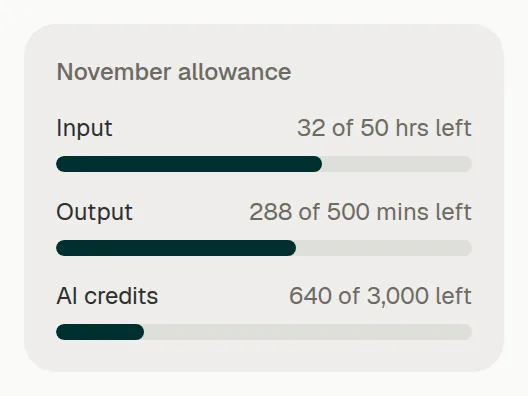
Each plan includes input and output minutes per month. The quota shows at the bottom of the navigation and under Settings → Billing. When the month's input minutes are used up, ShowBits takes no new episodes, and AI tasks wait until minutes are free again, in the new month or with a credit pack. With your own AI key on Enterprise and OnPremise, AI tasks go on.
- Open the episode that shows Quota used up.
- Once minutes are free again, click Resume processing.
Owners and organisation admins buy credit packs under Settings → Billing with Buy AI credits, see Team and settings.
Connecting a service does not work
Admins connect services under Integrations. If connecting does not work, a message on the page says why: the connection was cancelled, the required permission was not granted, or connecting failed.
- Open Integrations.
- On the card of the service, click Connect, or Reconnect if the connection needs renewing.
- Sign in at the provider with the right account and allow every permission it asks for.
In many companies, the IT has to approve ShowBits once. For Microsoft 365, copy the Approval link for your IT on the OneDrive / SharePoint card, send it to your IT, then connect again, see OneDrive and SharePoint. For Box, your company's IT approves ShowBits once in the Box Admin Console under Apps → Custom Apps Manager, see Box.
Glossary
Organisation: the customer account with the plan and billing. Workspace: one client or brand within the organisation, with its own team, brand kits and integrations. Brand kit: logo, colours, fonts and tone of voice of a show or brand. Episode: the uploaded or imported show. Highlight: a moment the analysis suggests as a clip. Meme: a short line or reaction that works without context. Clip: the finished short video with subtitles and texts. Quote card: a short sentence from the episode as a picture. Embargo: a blocking period; before it ends, nothing of the episode is published. Duty editor: the role of the second approval step. Quota: the minutes per month included in the plan. AI credits: credit from a credit pack for usage beyond the quota, valid for 12 months.
Questions
What does the embargo do?
Until the embargo of an episode ends, none of its clips goes out: posts can only be scheduled for the time after it, and Post now is not offered. Then it ends by itself. New episodes get their embargo by the rule of their show or by the default embargo, see Team and settings.
How do I change or lift an embargo?
Admins and duty editors open the episode and click Change embargo. There they set a new date and time and click Save, or click Lift embargo. If posts are planned before the new end, ShowBits shows them and moves them to the end of the embargo when you confirm. Every change is in the audit log. More in Adding episodes.
What if the reason says the connection no longer works or lacks a permission?
An admin connects the channel again under Integrations; then click Send again. For YouTube, the connected Google account needs a YouTube channel.
What if the platform refused the video, the text or the post?
The platform did not take the video (format, length or resolution) or the text (too long or not readable), held the post back as spam, or took it for a repeat of an earlier one. Change the clip or its text in the editor, then click Send again. X takes no @-mentions through ShowBits: write the name in the X text without the @. If YouTube rejected the video, or the platform does not let the account post, check the account on the platform.
What if the reason names a limit?
If the account has published too many posts through apps, or too many accounts post to TikTok through ShowBits today, send again later or post on the platform directly. If the YouTube channel reached its daily upload limit, send again the next day.
What if sending was interrupted or took more than two hours?
Check the profile on the platform first. If the video is there already, do not send it again; otherwise click Send again.
What if a TikTok post has to be prepared again?
This happens when another TikTok account is connected by now, when the account no longer offers the chosen visibility, or when the clip is longer than the account may post. Shorten a clip that is too long, then click Change and prepare the post again.
What if the account has no YouTube channel or no Facebook page?
For YouTube, create a channel on YouTube or choose a Google account with a channel when connecting. For Facebook, connect again and select a Facebook page in the dialog.
How do I delete episodes, clips or a workspace?
On the episode, Delete episode deletes it with its transcript, highlights and clips, including their texts, approvals and scheduled posts. A file imported from Google Drive, OneDrive, Box or Dropbox stays there; an uploaded file is deleted with the episode. In the clip editor, Delete clip deletes a clip with its texts, approvals and scheduled posts. Owners and organisation admins delete a whole workspace under Settings → Workspaces. Deleting is final, and the audit log records who deleted.
Do published posts disappear when I delete a clip?
No. Posts that are already published stay on the platforms. Remove them before you delete the clip, see Approving clips.
Is my content used to train AI?
No. No training on your data is always on and cannot be switched off; you see it under Settings → Security. With your own AI key on Enterprise and OnPremise, the content to be processed goes to your provider, and your contract with that provider applies.