
WordPress plugin
The ShowBits plugin brings released clips and quote cards into the media library of your WordPress site. People who may upload media pick them in WordPress, and ShowBits admins can also send them from ShowBits. The plugin comes with every plan.
- Who sets it up
- Admins and owners in ShowBits, administrators in WordPress
- Plans
- Every plan
- Requirements
- WordPress 6.5 or later, PHP 8.1 or later, a site served over HTTPS
- What the site may do
- Copy released clips and quote cards into its media library once their embargo is over. It cannot change anything in ShowBits.
Install the plugin
The plugin needs WordPress 6.5 or later and PHP 8.1 or later. Your site must be served over HTTPS and be reachable from the internet, because ShowBits delivers every file to it. A firewall or security plugin must let ShowBits through to /wp-json/showbits/v1/push on your site, and WP-Cron must run so that clips sent from ShowBits arrive.
- In WordPress, go to Plugins → Add Plugin.
- Search for
ShowBitsand click Install Now on the ShowBits plugin. - Click Activate.
The plugin in the directory: ShowBits on WordPress.org. WordPress 6.5 to 6.7 call the menu item Add New Plugin. You can also install the ZIP from ShowBits: click Download the plugin on the WordPress card under Integrations, then upload it in WordPress with Upload Plugin, as WordPress describes in Upload via WordPress Admin. Either way, updates come through WordPress, like for any plugin from the directory.
Connect the site with a site key
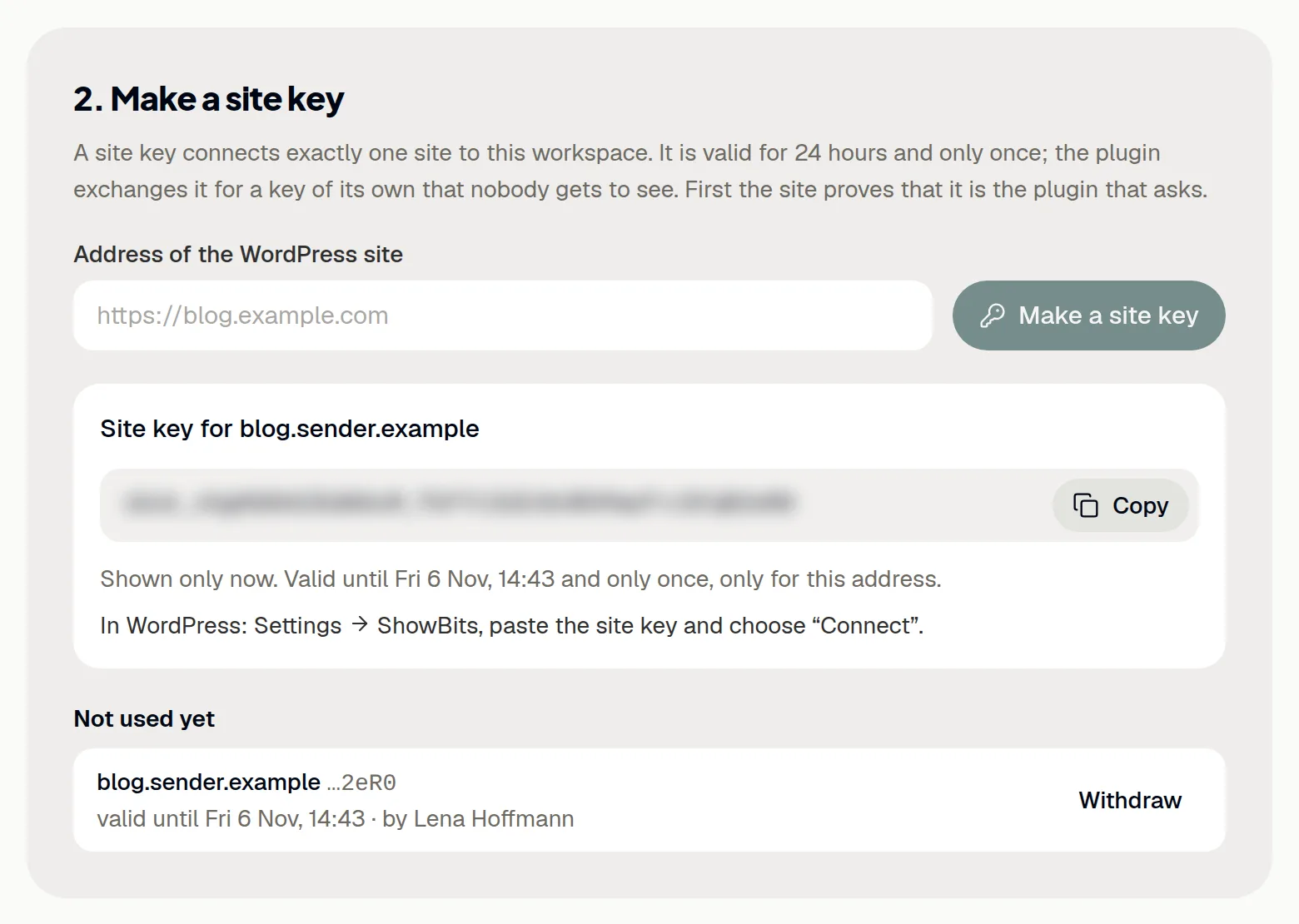
A site key connects one site to your workspace. It is valid for 24 hours, works only once and only for the address it was made for. Admins of the workspace and owners and admins of the organisation make it; in WordPress, an administrator pastes it.
- In ShowBits, open Integrations and click Make a site key on the WordPress card.
- Under Address of the WordPress site, enter your site's address, for example
https://blog.example.com. - Click Make a site key.
- Click Copy. ShowBits shows the key only now.
- In WordPress, go to Settings → ShowBits.
- Paste the key under Site key and click Connect.
Keys that nobody has used yet are listed under Not used yet; Withdraw cancels one. With ShowBits OnPremise, enter the address of your installation under ShowBits address in WordPress before you connect.
Or connect through ShowBits
If you are an admin or owner of the workspace yourself, you can connect the site from WordPress without a site key.
- In WordPress, go to Settings → ShowBits and click Connect through ShowBits.
- Sign in to ShowBits if it asks you to.
- Check the address in bold at the top: it is the site that wants to connect.
- Under Workspace, choose the workspace and click Connect. ShowBits takes you back to WordPress.
The connection belongs to the workspace, not to you: it stays until someone disconnects it in ShowBits or in WordPress.
Take clips in WordPress
Media → ShowBits lists the released clips and quote cards of the connected workspace, newest first. Everyone who may upload media can use it; by default these are authors, editors and administrators.
- In WordPress, go to Media → ShowBits.
- Type in the Search titles field, or show only Clips or Quote cards.
- Tick the clips and quote cards you want. For each quote card, choose the Format: 4:5, 1:1 or 9:16.
- Click Import selected.
- Wait while the page asks ShowBits for the files. If you leave the page, the import continues in the background.
A clip arrives as an MP4 video with its title, its text and its thumbnail as the poster image. A quote card arrives as a JPEG picture with the quote as its alternative text. Clips under embargo appear only once the embargo has ended.
Send clips from ShowBits
Admins of the workspace and owners and admins of the organisation can send a released clip or quote card to a connected site. It lands in the site's media library by itself. Quote cards arrive in the format chosen in WordPress under Settings → ShowBits at Quote cards, 4:5 unless you change it.
- In ShowBits, open Approvals and switch to Approved.
- At the clip, click To WordPress.
- Choose the site and click Send.
- The clip then shows where it stands on the site: on its way, importing, in the media library or failed.
While the episode's embargo holds, or while the video or picture is not ready yet, To WordPress cannot be clicked. Anyone who has the address of a file in the media library can open it.
Disconnect a site
After disconnecting, the site's key stops working and the site can no longer take clips from ShowBits. What is in its media library stays there.
- In ShowBits, open Integrations and click Manage on the WordPress card.
- Under Connected sites, click Disconnect next to the site and confirm with Disconnect.
In WordPress, Disconnect under Settings → ShowBits does the same. If you delete the plugin in WordPress, the connection ends as well and the plugin's settings are removed; imported files stay.
Update the plugin
Updates come through WordPress, like for any plugin from the directory, also when you installed the ZIP from ShowBits. The WordPress page in ShowBits shows which version each connected site uses.
- In WordPress, open Dashboard → Updates. A new version of ShowBits is listed there and under Plugins.
- Update ShowBits there. If automatic updates are on for the plugin, WordPress does it by itself.
The connection and the settings stay as they are. Without access to the directory, update by hand: download the ZIP in ShowBits, upload it under Plugins → Add Plugin → Upload Plugin and choose Replace current with uploaded.
Questions
How many sites can a workspace connect?
Your plan sets how many sites a workspace can connect and how many clips each site can take a day. Clips picked in WordPress and clips sent from ShowBits both count. The WordPress page in ShowBits shows the numbers for your plan, and Settings → ShowBits in WordPress shows today's imports.
Can a site take clips from two workspaces?
A site is connected to one workspace at a time. To move it, make a site key in the other workspace and paste it in WordPress under Settings → ShowBits at Connect again.
Who can open imported files?
Imported files are ordinary files of the media library: like any upload, anyone who has their address can open them. ShowBits only hands out clips that were released and whose embargo has ended.
What happens when a clip changes in ShowBits?
The imported file stays as it is. If you import the new version, WordPress gets a new file, and posts that show the old one keep working. The library marks such clips with An older version is in the media library.
Connecting fails. What can I check?
A site key is valid for 24 hours, only once and only for the address it was made for; if in doubt, make a new one. ShowBits must reach your site over HTTPS, so a firewall, security or cache plugin must let its requests through to /wp-json/showbits/v1/push.