
ChatGPT with your own OpenAI key
On Enterprise and OnPremise, ShowBits can run its AI tasks with your organisation's own OpenAI API key. The tasks ChatGPT covers then run under your contract with OpenAI and use no ShowBits credits. Owners and organisation admins add the key once, for all workspaces.
- Plans
- Enterprise and OnPremise
- Who sets it up
- Owners and organisation admins
- Applies to
- Every workspace of your organisation, new ones included
- ChatGPT covers
- Copy and hashtags, thumbnail headlines, subtitle translation, speakers and clip selection, highlight scoring
What your own key changes
With your key, ShowBits sends the content of the tasks ChatGPT covers to OpenAI, for example the transcript of an episode. Your contract with OpenAI applies to that processing, and OpenAI bills the usage to your account there. These tasks use no ShowBits credits; steps ShowBits does itself, such as rendering clips, still count against your plan quota. Without your own key, and always on Creator and Business, ShowBits runs the AI with its own accounts, within your plan quota and credit packs.
Above the cards, ShowBits lists who handles each task, for example “ChatGPT · own key”. A task that none of your keys covers shows the provider with “ShowBits, using credits”.
Create an API key at OpenAI
You need an account on the OpenAI Platform with credit. Without credit, OpenAI refuses requests.
- Sign in to the OpenAI Platform and open the API keys page.
- Create a new secret key and name it so you recognise it later, for example
ShowBits. - Copy the key. It starts with
sk-, and OpenAI shows it only once.
If you restrict the key's permissions, it must still be allowed to list the models and to use them for chat completions.
Add the key in ShowBits
Only owners and organisation admins see the key field, and only on Enterprise and OnPremise. Everyone else sees which providers are connected and which model they use.
- Open Integrations.
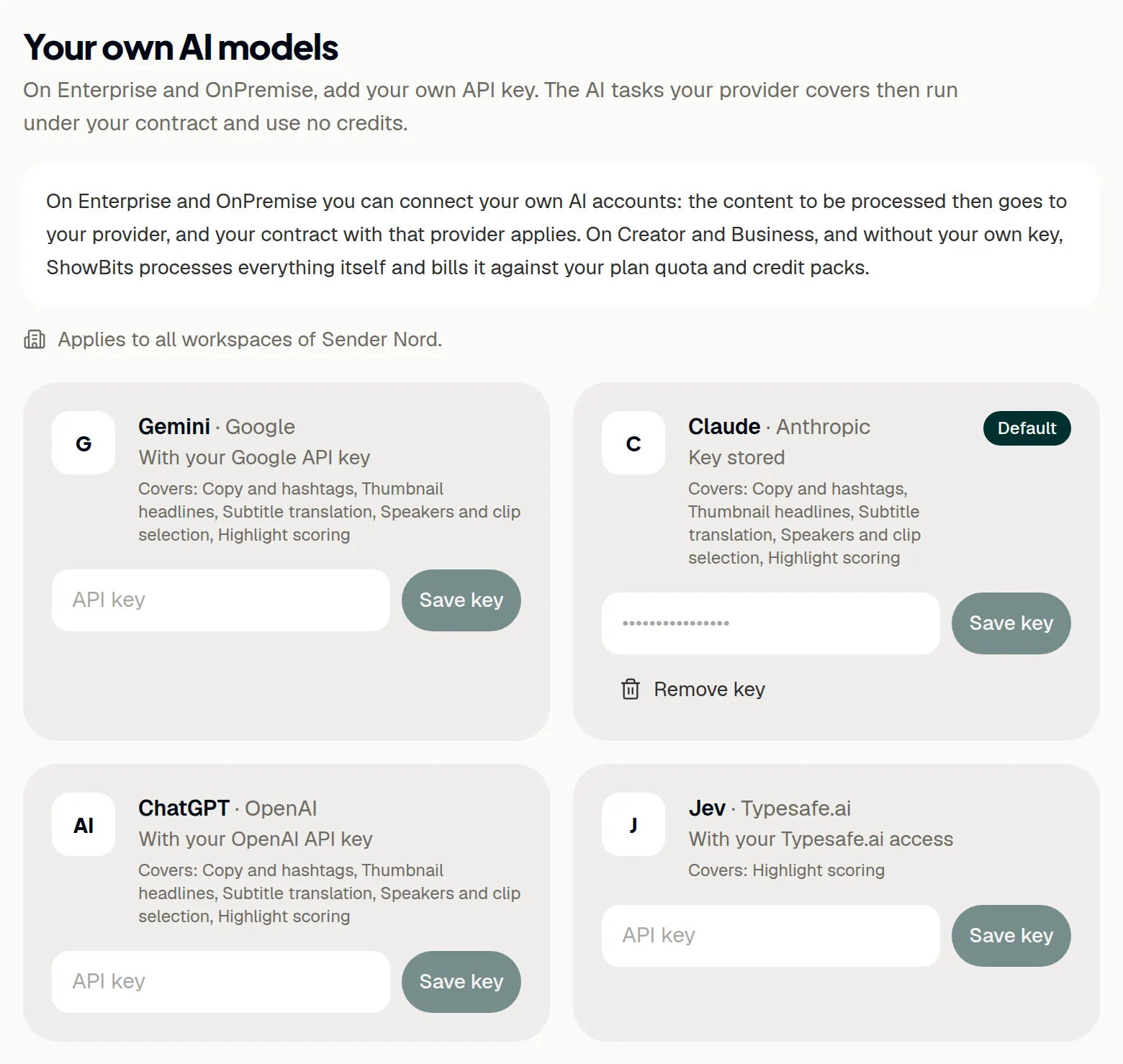
- Go to Your own AI models.
- On the ChatGPT card, paste the key into the API key field.
- Click Save key.
ShowBits checks the key with OpenAI and saves it only if OpenAI accepts it. The card then shows Key stored. ShowBits keeps the key encrypted and never shows it again.
Choose the model
After saving, the card shows the models your key can use. A new key starts on “GPT · always the newest”, with the version it uses today in brackets.
- On the ChatGPT card, open the Model list.
- Choose a model family marked “always the newest”, or a fixed version.
“Always the newest” moves to new versions by itself, without anyone changing the setting. New models appear in the list once OpenAI offers them. If OpenAI retires the fixed version you chose, ShowBits switches to “GPT · always the newest”.
Use ChatGPT as the default
With keys for several providers, ShowBits asks the default first for each task it covers, and the others stand in if it fails. The first key your organisation adds becomes the default. Highlight scoring goes to Jev first whenever Jev is connected.
- On the ChatGPT card, click Use as default.
The card then shows Default. If you remove the key of the default provider, another connected provider becomes the default.
If OpenAI has no credit or refuses the key
If OpenAI reports that your account has no credit left, or refuses the key, your other connected AI providers take over the tasks. Until ChatGPT answers again, the ChatGPT card says since when, for example “ChatGPT has had no credit left since …”. If no other provider can stand in, ShowBits shows: “The AI provider has no credit or quota left, and no other provider could stand in. Please check the account with the provider.”
- On the OpenAI Platform, add credit or raise the spend limit.
- If OpenAI refuses the key, create a new key and save it on the ChatGPT card.
The note on the card disappears as soon as ChatGPT answers again. For the tasks your keys cover, ShowBits does not switch to its own accounts.
Remove the key
- On the ChatGPT card, click Remove key.
- Confirm with Remove key.
After that, no workspace of your organisation uses ChatGPT. Its tasks go to your other connected providers or, without one, to ShowBits' own accounts, using credits. The key itself stays valid at OpenAI: delete it on the OpenAI Platform if no one needs it.
Questions
We are on Creator or Business. Do we need an OpenAI key?
No. ShowBits runs the AI with its own accounts at Anthropic, OpenAI and Typesafe.ai, within your plan quota and credit packs. Own AI accounts come with Enterprise and OnPremise: under Settings → Billing, Your own AI accounts opens a prepared email to ask about them.
The card says “Key stored, not used on your plan”. Why?
The key was added earlier. On Creator and Business, ShowBits does not use it. Owners and organisation admins can delete it with Remove key. After a switch to Enterprise or OnPremise, ShowBits uses it again.
Can we see the stored key again?
No. ShowBits stores it encrypted and never shows it. To change the key, paste the new one on the ChatGPT card and click Save key. The model you chose stays if the new key can use it.
ShowBits says “ChatGPT rejected the key. It was not saved.”
Check that you copied the whole key, that it is still active on the OpenAI Platform and, for a key with restricted permissions, that it may list and use the models. If in doubt, create a new key and save it.
When saving, ShowBits says the account has no credit left.
OpenAI recognised the key, but the account has no credit left or reached its spend limit. Add credit or raise the limit on the OpenAI Platform, then save the key again.
Does a ChatGPT subscription work instead of an API key?
No. ShowBits needs an API key from the OpenAI Platform, and OpenAI bills its use there. A ChatGPT subscription does not cover it.